Changelog

Follow new updates and improvements to Filently.

Two fewer things to do by hand
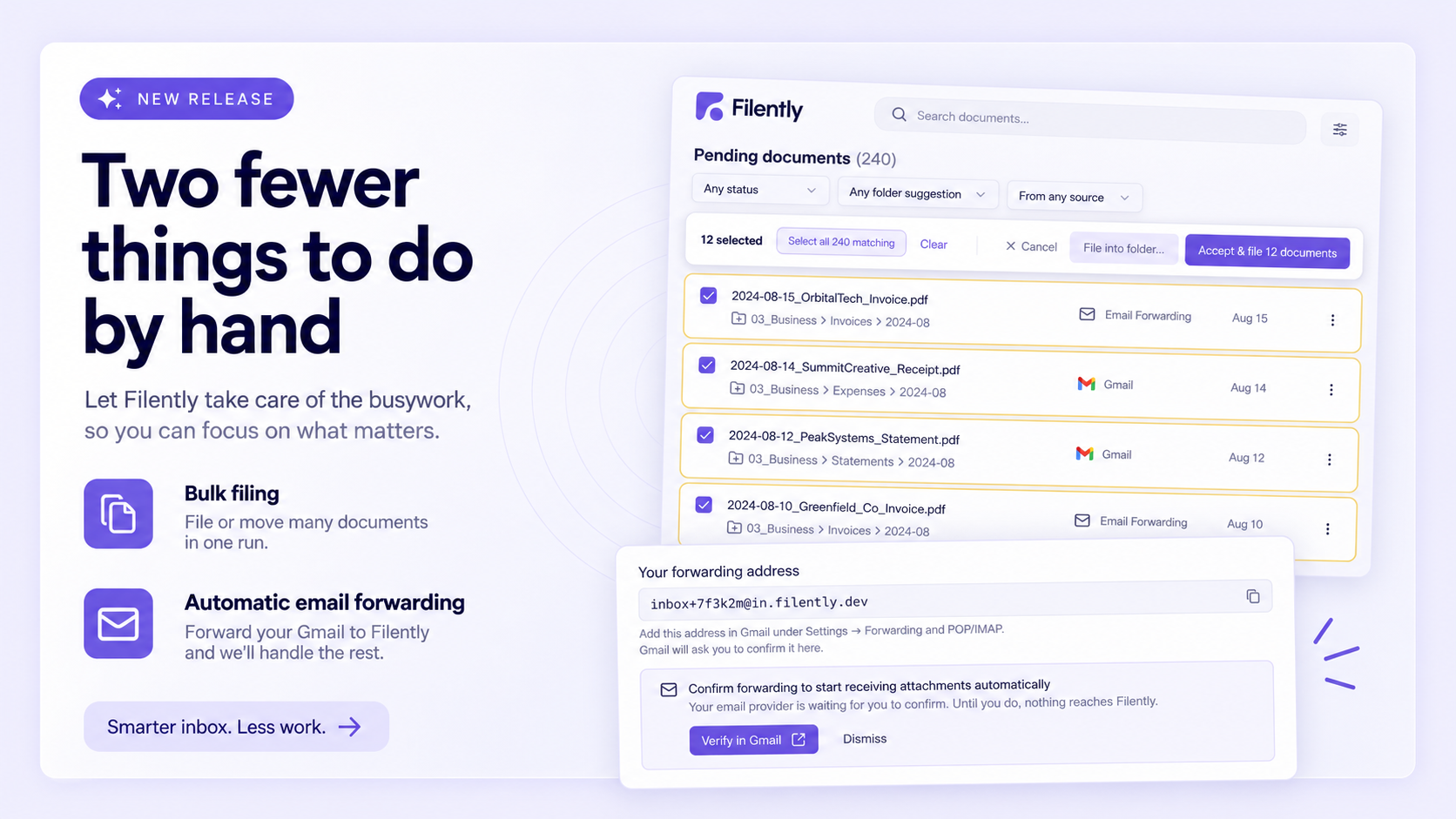
Last release your inbox folder started keeping itself organized. This one goes after the work you still do document by document: file or move a whole set in a single run, and let Gmail forward your mail to Filently automatically instead of you sending each email yourself.

Many documents, one run

Until now, filing was all or nothing: accept every suggestion on the page, or work through the documents one at a time. Now you pick the set.

Choose Select to file on your dashboard, tick the documents you want, and file only those. The bar above the list keeps a running count. Select all 240 matching takes everything behind your filters, including the pages you have not scrolled to, and you can untick single rows to leave them out. Accept & file 12 documents then files each one where Filently suggested, under the name it suggested.

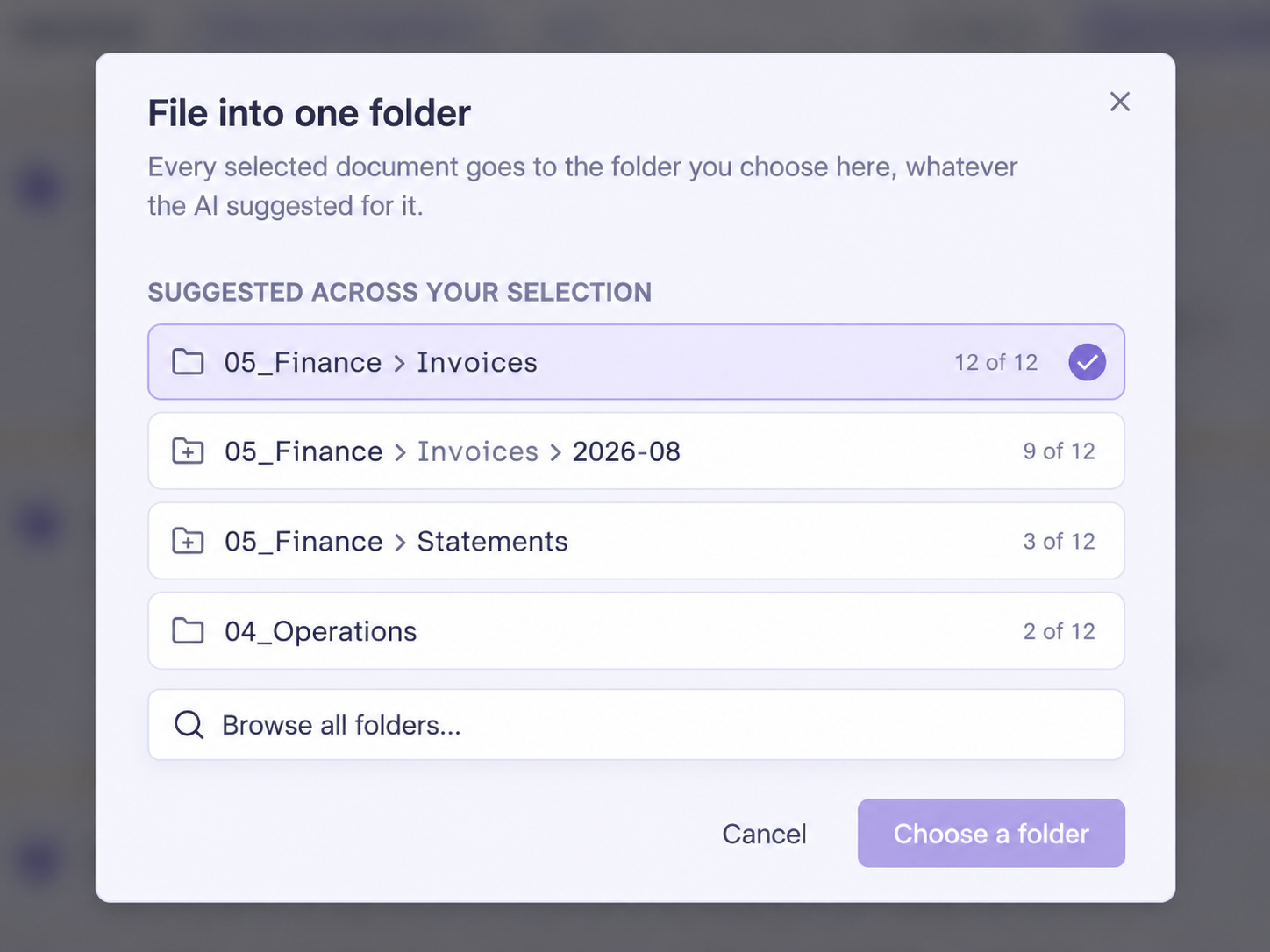
When you already know where a set belongs, File into folder... overrides the suggestions and sends the whole selection to one folder you choose. Filently opens with a shortlist of the folders your selection already points at, ordered by how many documents agree, each with its share next to it: 23 of 50. A strong pattern is one click. For a large selection Filently reads the first 50 documents to build that shortlist, and the folder you pick still applies to all of them. Browse all folders... opens your full Drive if you want something else.

The same works on the Documents page for files you filed already, where the buttons read Select to move. Documents that Filently could not analyze come along too: they move into the folder you chose and keep the filename they have.

A run happens in the background, so you can keep working or close the page. It appears in your Activity feed as one entry with a progress count, a report of every document it touched, and the reason for anything it could not move. You can undo it, whole or document by document. Activity Managing Filed Documents
New Features

Turn on automatic email forwarding

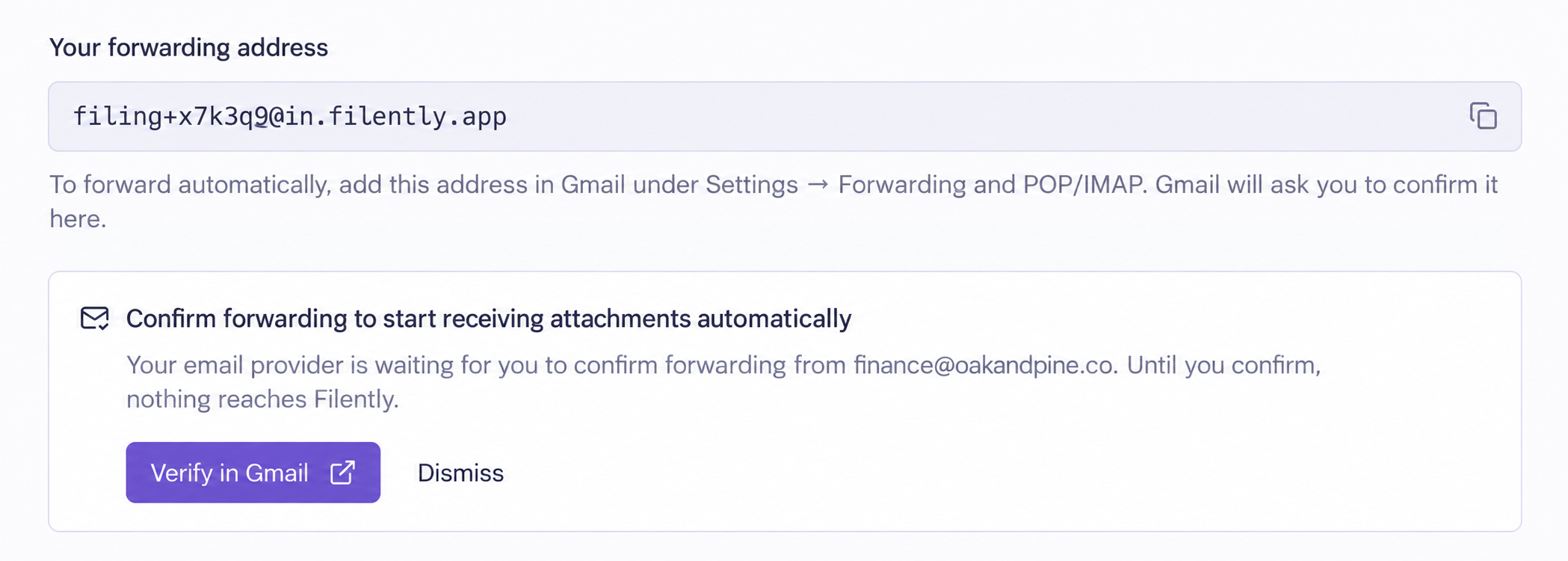
Gmail can forward every incoming email to your Filently address by itself. It first asks you to confirm, and it sends that confirmation to the address you entered. That is your Filently address, so the email never reached you and forwarding stayed switched off.

The confirmation now appears in the app. Open the Sources page and the Email Forwarding card shows the request, names the mailbox that asked to forward, and gives you a Verify in Gmail button straight to Google's confirmation page.

Read the mailbox name before you confirm. Anyone who knows your forwarding address can ask Gmail to send mail to it, and Filently never confirms on your behalf. If you do not recognize the address, dismiss the reminder and Gmail leaves forwarding off. Forwarding single emails by hand needs none of this. Email forwarding is on the Professional plan and above. Email Forwarding
Bug Fixes

  • Bounce messages: once your mail forwards automatically, failed deliveries and read receipts arrive too. Filently now skips the status parts your provider attaches to them, so they no longer sit in your list waiting to be dismissed.

  • Documents stuck on "Uploading": an upload that stopped halfway, because you closed the tab or lost your connection, left the document in your list forever. Filently now clears it out.

  • Documents stuck on "Processing": an empty file, or a download that cut out mid-way, could hold a document in processing with nothing to show. Both now end properly and the document moves on.

  • Duplicate folders: when a step of the folder setup ran twice, it created a second copy of the same folder in your Drive. It now reuses the folder that is already there.

  • Renewals: if your payment provider had to retry a renewal, the documents for the new period were not added to your balance. They are now.

  • Dashboard counts: the counts above your document list only refreshed when you came back to the tab. They update live again.
NewFixed

Look Before You File

This release is mostly about what reaches you in the first place. You can now open a file before you approve it, tell Filently which email attachments to accept, and rely on it to recognize files that arrive without a proper file type. Bulk revert also landed, so the changes you do want to undo no longer have to go one at a time.

What Comes In

Preview a file before you approve it

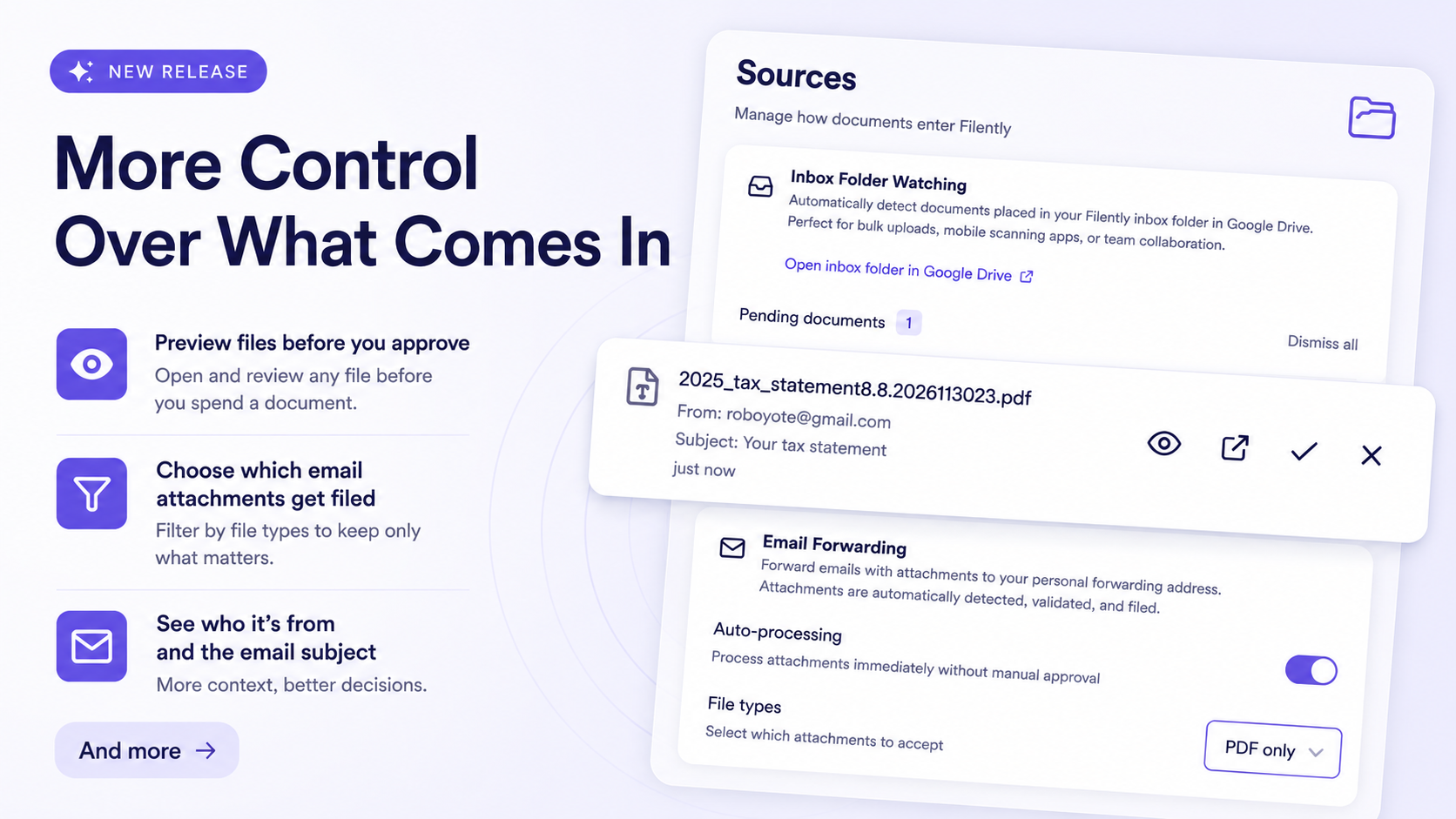
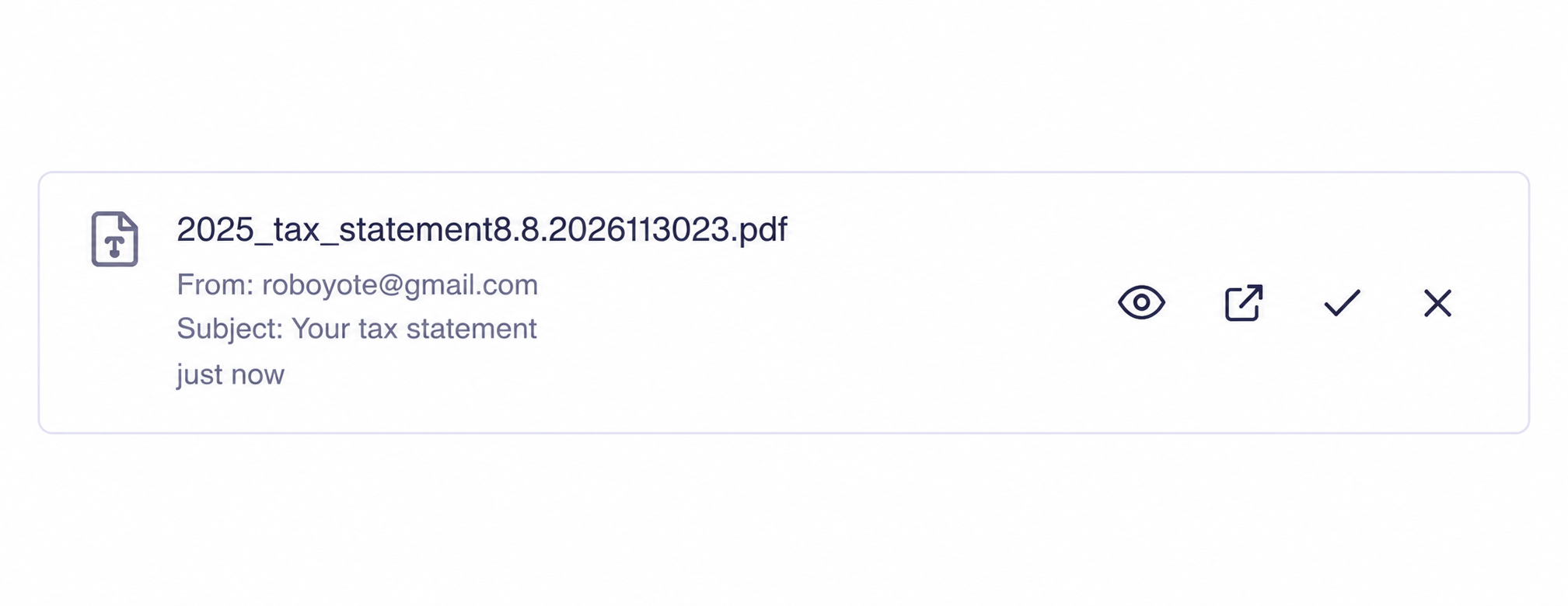
Every file waiting on your Sources page now carries an open button, so you can check what something is before you spend a document on it.

Email attachments open in a new browser tab for PDFs, photos, and scans, and download for the formats browsers cannot display. Files found in your inbox folder open in Google Drive under your own account, where every format has a viewer, including Office files and Google Docs. Rejected files carry the same button, so you can check a duplicate warning against the actual file before you dismiss it.

Each row also shows more context: who sent the file, the subject line of the email it came from, or the folder it was found in. Opening a file does not file it and does not use a document credit. @Email Forwarding Inbox Folder Watching

Decide which email attachments get filed

Forwarded emails often carry more than the document you meant to send. Two changes keep the noise out of your Drive.

Filently now always skips decorative graphics: any image under 25 KB, and SVG graphics at any size. Those are the signature logos and tracking pixels that arrive as ordinary attachments. They are never downloaded, never use a credit, and never reach your Sources page. Photographed receipts and scanned pages are far larger, so they still come through normally, and PDFs and Office documents are never skipped.

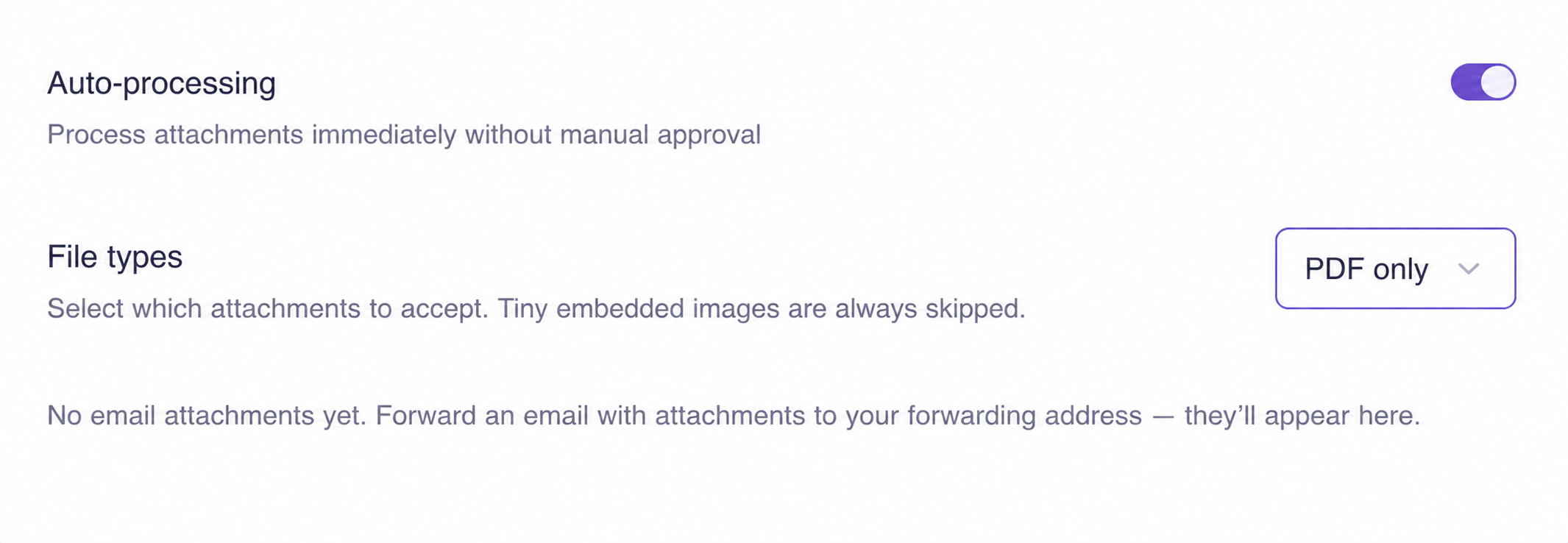
Auto-processing also has a new File types setting on the Sources page. Choose PDF only, PDF and Office, PDF, Office and images, or everything. Attachments outside your choice are skipped before they reach you. Email Forwarding

Better recognition of unlabeled files

Browsers and cloud drives often hand over a file without saying what it is, especially for less common extensions. Filently used to fall back to the filename in those cases, which made for weaker names and filing suggestions.

Filently now works out the real file type from the file itself, both when you upload and when a document is processed. Files that arrive unlabeled are read and classified properly, and forwarded attachments are judged on what they actually contain rather than on what the sender claimed. Supported File Types and Limits

New Features

Revert many changes at once

Undo is no longer one document at a time. Select as many changes as you like on the Activity page and roll them all back in a single run.

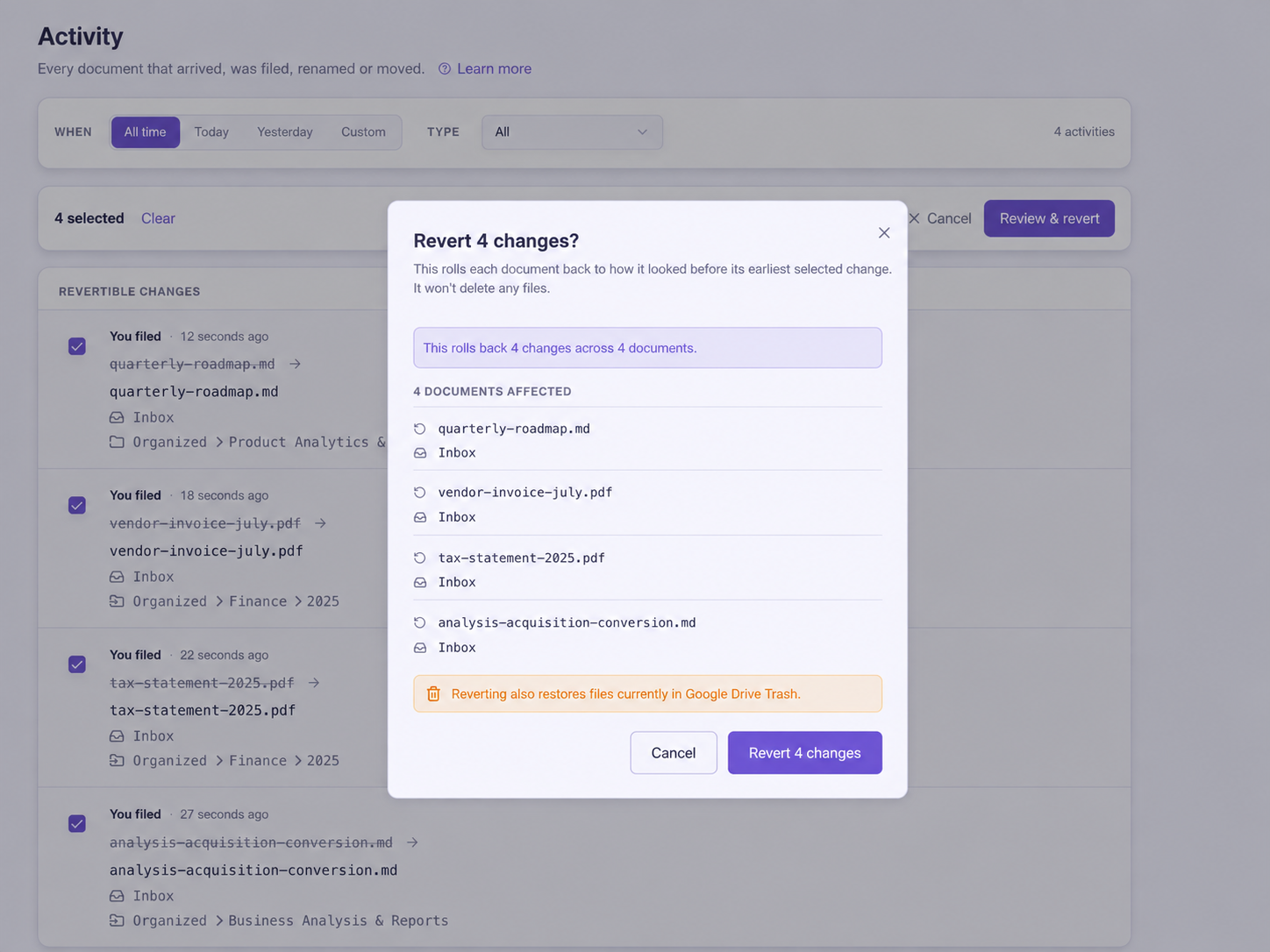
Choose Select to revert and the timeline switches to Revertible changes, so you only see what can actually be undone. Tick what you want, or use Select all N matching to take everything behind your current filters, including entries on pages you have not scrolled to yet. Before anything happens, a confirmation shows you how many changes and documents are involved and exactly where each document will land, with its restored name and folder.

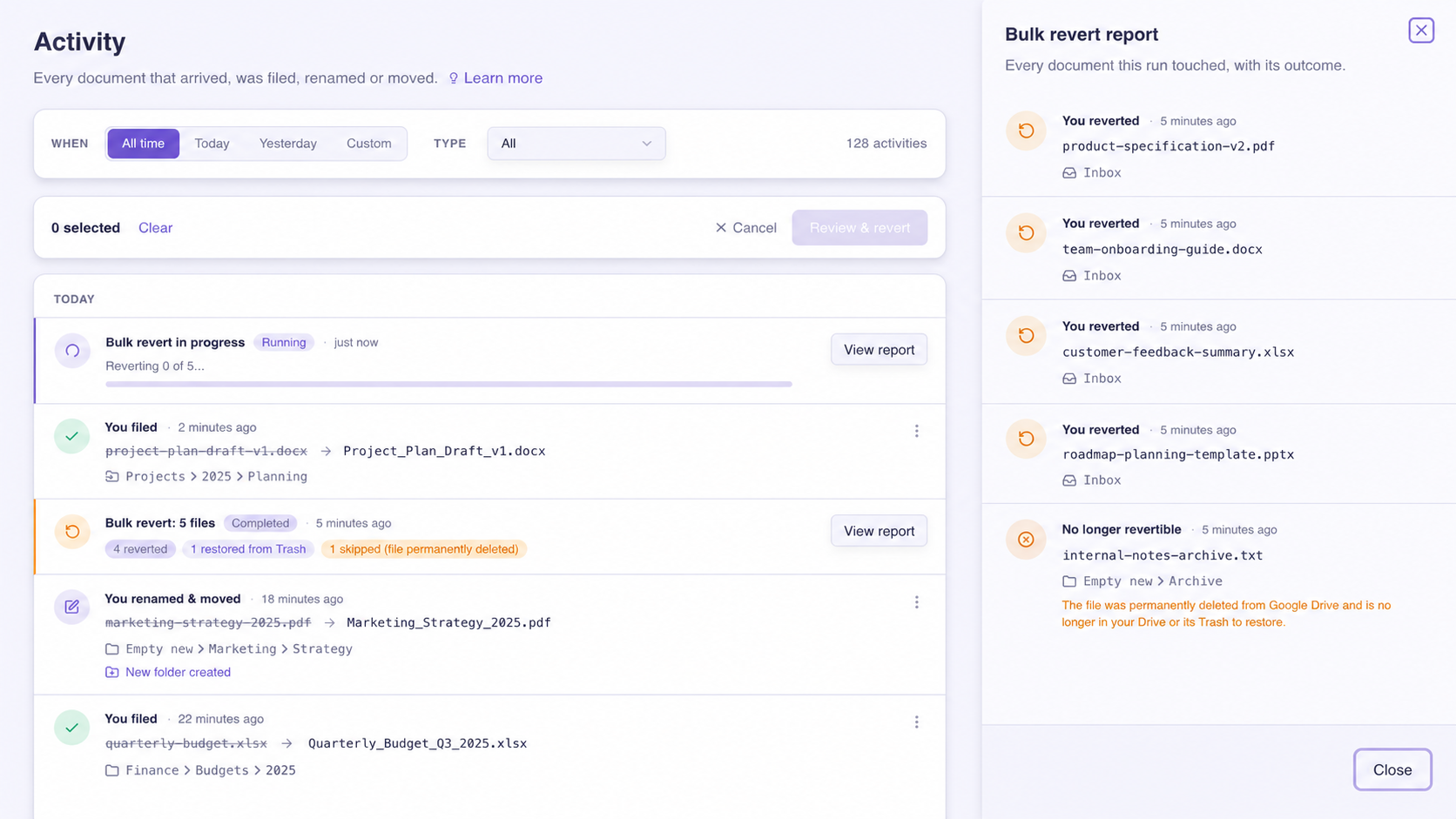
The run happens in the background, so you can keep working or close the page. When it finishes you get one entry with a full report: how many documents came back, how many were restored from Google Drive trash, how many were skipped, and what failed and why. Bulk revert follows the same rules as a single revert and never deletes a file. Activity

The bulk revert confirmation, showing the affected documents and their restored locations
A completed bulk revert entry with its run report open

Extra documents without changing your plan

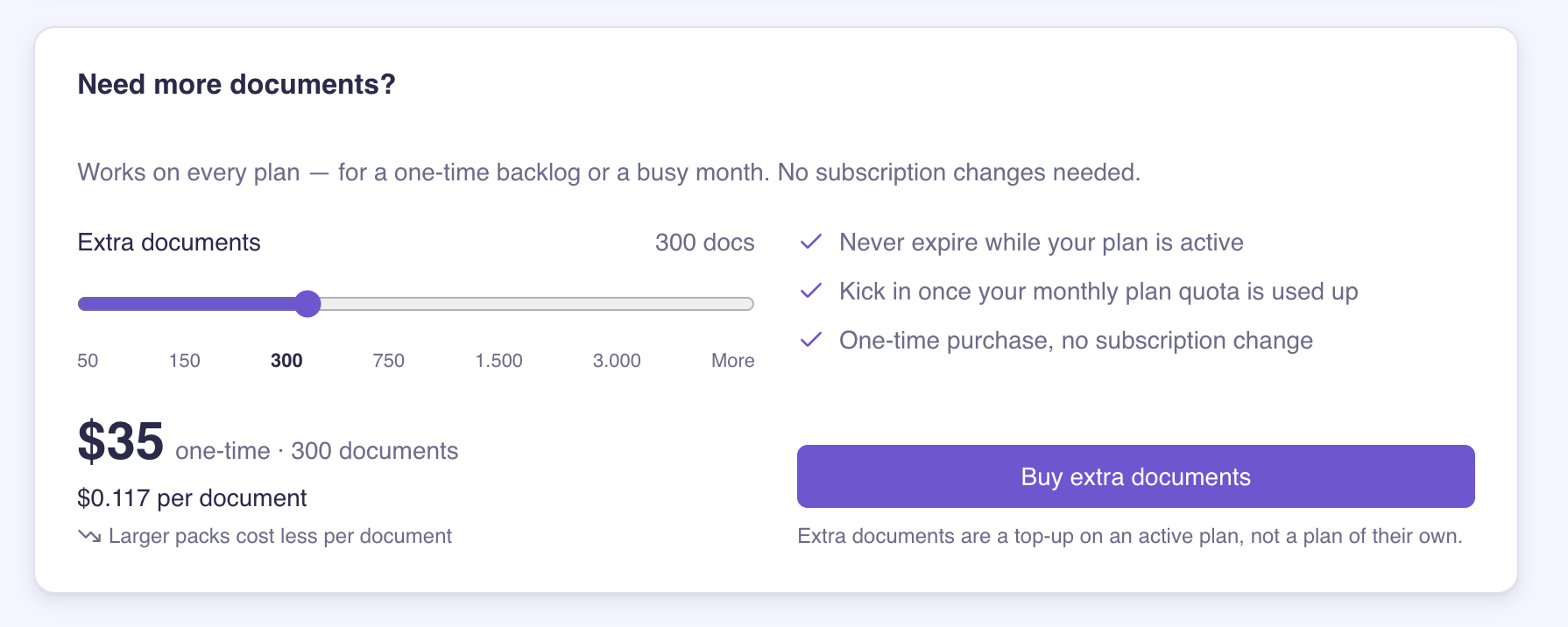
You no longer have to upgrade or wait for your billing date when you run out of documents. Buy a one-time package of extra documents straight from your billing page, from 50 up to 3,000. Larger packages cost less per document, and you can chat with us for anything above 3,000.

Extra documents sit on top of an active plan. Your plan allowance is always used first, extra documents carry over between billing periods instead of resetting, and they stay available for as long as your subscription is active.

Bug Fixes

  • Inbox folder watching: watching now repairs itself when the connection that reports new files breaks, so new files are picked up again without you doing anything.

  • Very long filenames: a file with an unusually long name no longer blocks the rest of your inbox from being processed.

  • Unreadable Office files: a damaged Office file is now filed on its name instead of failing outright.

  • Filing everything at once: filing a large batch no longer stops part-way when Google limits how fast files can be moved, and large batches now finish faster.

  • Missing file permissions: if Filently cannot access a file, filing now tells you what to do instead of showing a generic error.

  • Re-analyzing documents: you can now re-analyze up to 15 documents per hour, up from 3.

  • Unreadable Office files: a damaged Office file is now filed on its name instead of failing outright.

  • Reverts that lose file access: if a revert fails because Filently lost access to the file, the change stays revertible so you can retry after you restore access.

NewImprovedFixed

Find documents fast: paginated, filterable dashboard

This release brings a major upgrade to how you browse documents in review, plus expanded plan limits and a list of reliability fixes.

New Features

Paginated, filterable dashboard list

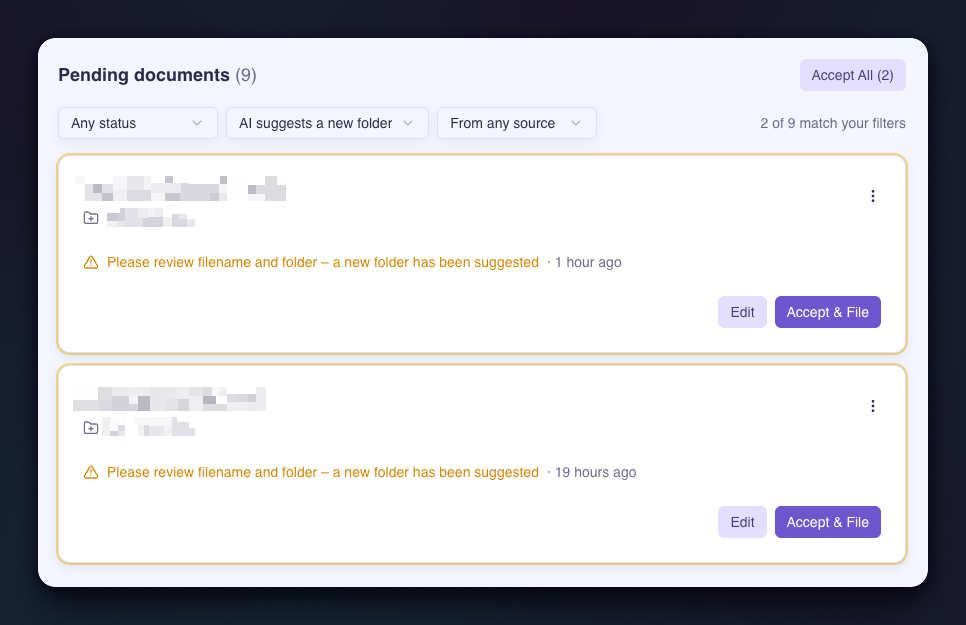
The documents queue on your dashboard now loads in pages with a "Load more" button instead of rendering everything at once. If you've been letting documents pile up, the dashboard will stay snappy regardless of queue size. New filters let you narrow down by status, folder type, and source (upload vs. inbox), and bulk actions like "Accept All" and "Remove Failed" respect the active filters.

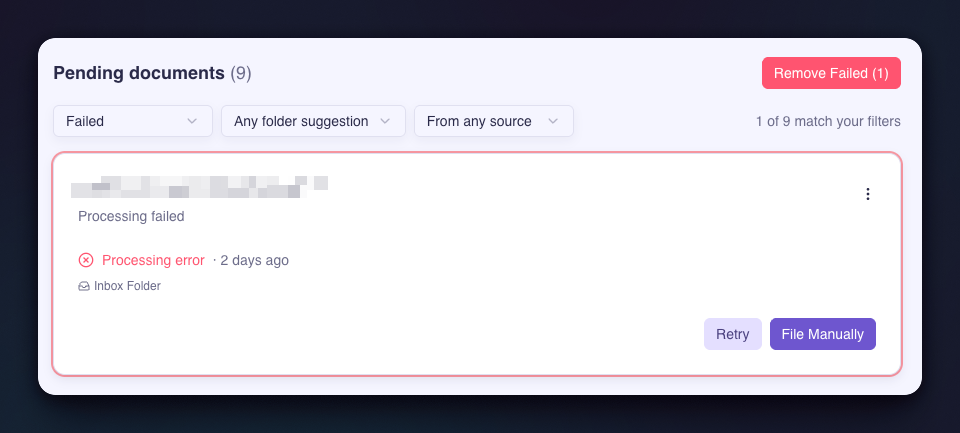
Bulk remove failed documents

A new "Remove Failed" button on the dashboard lets you clear out all documents that couldn't be processed in a single action. The files themselves stay in your upload folder, so you can still file them manually later if you want. The same one-click cleanup is now available for individual documents too. Managing Filed Documents Reviewing Documents

Safer file removal in Google Drive

When you remove a document and choose to also delete the file from Google Drive, Filently now moves it to Drive's trash instead of permanently deleting it. Previously, files were hard-deleted and unrecoverable — now you have 30 days to restore anything removed by accident. Keeping the file in Drive untouched is also now the default option.

Higher Personal plan limits

The Personal plan now includes 50 documents per month (up from 25) and 600 per year (up from 300) — same price, double the headroom.

Larger custom filing instructions

Custom filing instructions now allow up to 5,000 characters (up from 2,000), giving you more room to describe folder structures, tie-breaker rules, and business context.

Bug Fixes

  • Large Excel files now parse reliably — certain large, sparse spreadsheets that previously failed processing now extract correctly.

  • Email attachment file extensions match the actual content — when an attachment's extension didn't match its real type, Filently now corrects it before saving to Drive.

  • Email attachments without a filename or type are no longer rejected — Filently now generates a sensible filename and detects the type from content.

  • Tiny images no longer break processing — very small images now fall back to filename-only classification instead of failing.

  • Folders with more than 100 files are now fully indexed — inbox folders containing many files are no longer silently truncated.

  • Filing into newly-created nested folders is now consistent — filing into multi-level new folders (e.g. "2026/March") no longer occasionally produces inconsistent folder state.

NewImprovedFixed

Earlier updates