This week is all about filing quality. We started rolling out a new AI model that names your files better and works faster, and we made Filently much better at understanding your folder structure. Shared drives work better too, and most PDFs are now processed faster.
Better filing
A new AI model for filing
Filently now files with a new, latest-generation AI model. In our tests, it did best exactly where filing is hardest: on the documents our users had to correct by hand, it found the right folder more often than the model before. And it writes noticeably better file names:
It keeps the language of your documents and folders more consistently.
It writes shorter, cleaner names.
It picks the right date more reliably.
It is faster.
We are rolling it out gradually, so we can watch the results closely. You do not need to do anything. If you can't wait, write to us through the chat in the app and we switch your account right away.
🗣️ Tell us how it files for you. If a suggestion or a name surprises you, good or bad, we want to hear it. Your feedback decides when the new model becomes the default for everyone.
Smarter folder suggestions
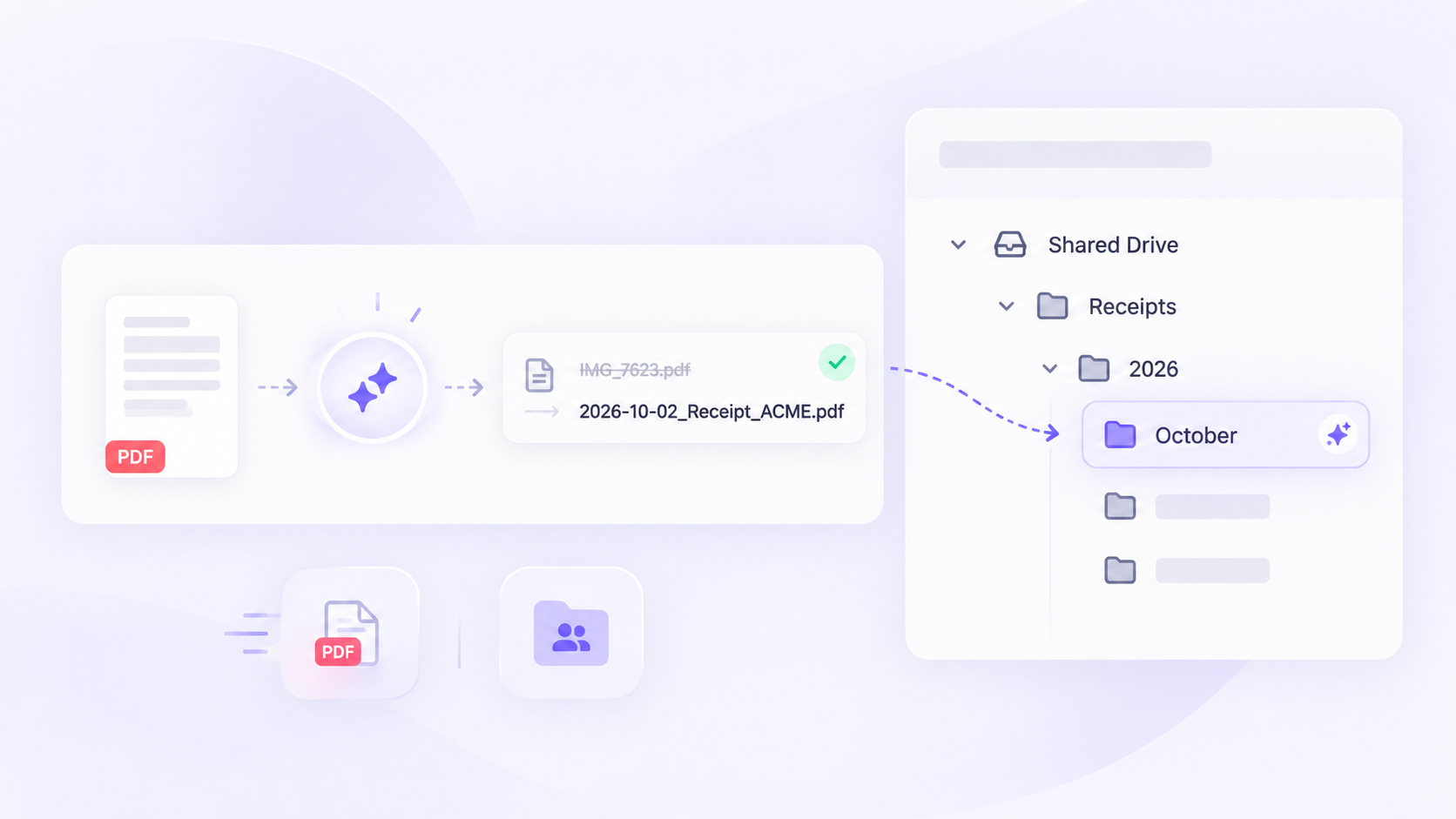
Filently now understands your folder structure much better when it picks where a document goes, also in large and deeply nested trees. The biggest effect: when a document needs a new folder for the new month or year, such as October inside Receipts/2026, Filently now suggests it and files the document automatically. Before, these documents often waited in review, especially in the first days of a month.
Folders with a slash in their name, such as “2024/2025”, are now understood as one folder too.
Also New
Faster processing for most PDFs
PDFs created on a computer, such as invoices and statements you download, are now processed faster. Scanned documents work as before.
Bug Fixes
Filing location moved to another drive: when you moved your filing location folder, for example from My Drive into a shared drive, Filently treated it as deleted and stopped noticing new files. It now follows the folder to its new drive.
Automatic filing after a reconnect: when Google stopped Filently's access and you reconnected Google Drive, your inbox switched to manual approval and stayed there. Reconnecting now keeps the access you had given, so automatic filing continues and waiting files are filed. If you leave out the wider permission on Google's screen, Filently tells you which one is missing.
Last release was about controlling what reaches you. This one takes care of what happens next: your inbox folder in Google Drive now keeps itself organized, and a file that is too large to analyze gets filed anyway instead of being turned away.
Your files stay in your Google Drive
Filently works directly with the files in your Google Drive. Your files are never moved into separate storage.
When a new file comes into Filently, it first lands in your _ Filently Inbox. Think of it as a waiting room: the file stays there while Filently processes it and gets it ready for its final destination.
Filently analyzes the file and suggests a name and destination. You can review and approve that suggestion in the Filently dashboard. If you have automatic filing enabled, Filently can take care of the filing for you.
Files can enter this waiting room in different ways: you can upload them through the Filently app, forward them by email, or drop them directly into the _ Filently Inbox in your Google Drive.
New Features
Your inbox folder sorts itself
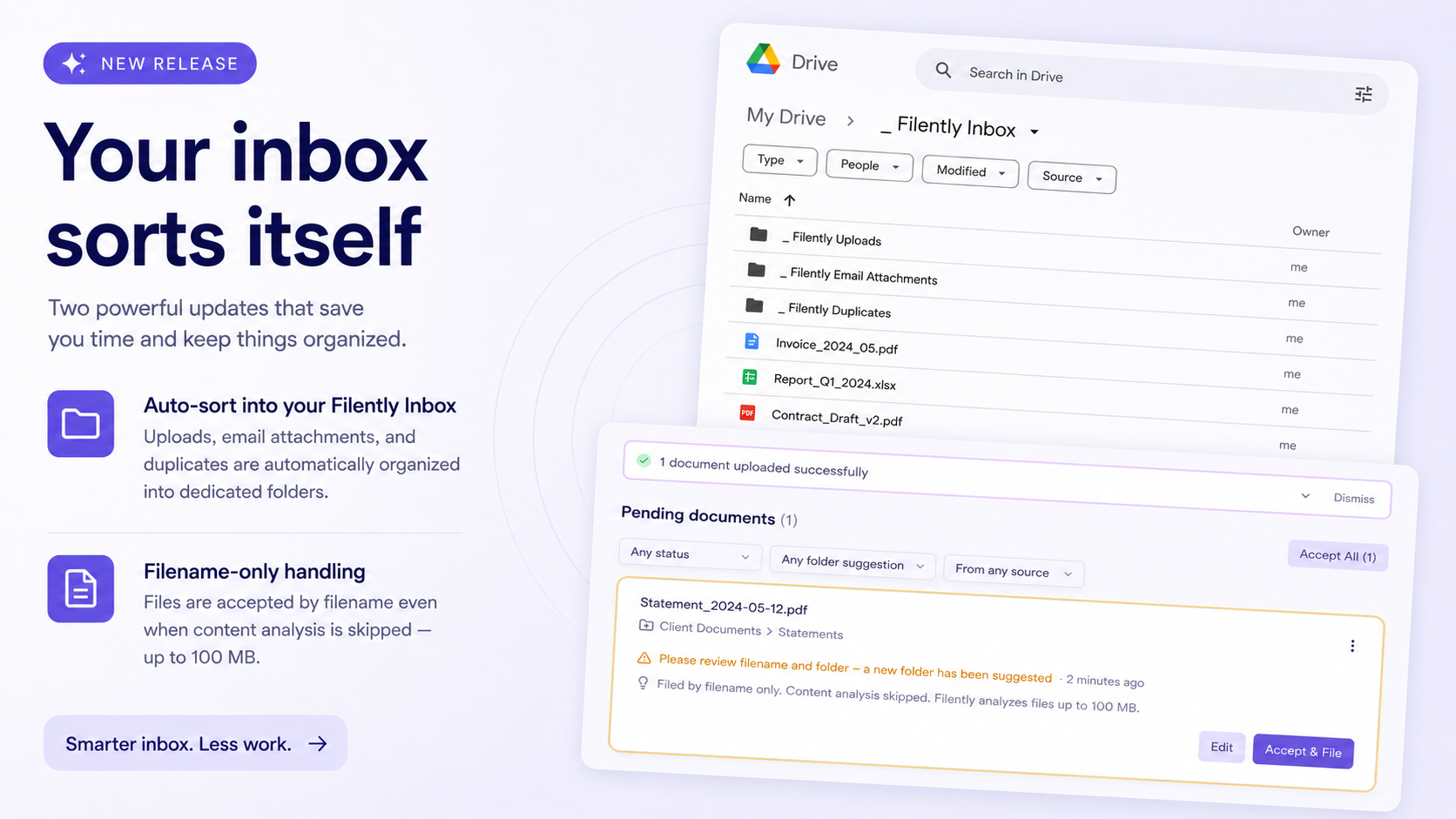
With files coming in from different places, the inbox can get busy. So we’ve added dedicated subfolders to keep things organized while files are waiting:
_ Filently Uploads holds the files you upload in the app.
_ Filently Email Attachments holds the attachments from your forwarded emails.
_ Filently Duplicates is where a duplicate goes the moment Filently spots it, so it no longer sits next to files that are still waiting.
The root of your inbox stays yours: the only loose files in it are the ones you put there. Dropping a file into one of the subfolders works too, Filently picks it up just like the root. And when you revert a filing, the document goes back to the exact subfolder it came from. Inbox Folder WatchingEmail Forwarding
Too big to analyze no longer means too big to file
Until now, a file over your plan's size limit was simply rejected: the upload stopped with an error, and an oversized file from your inbox or email went nowhere. That is over. Filently now takes a file of any size and files it based on its filename; only the content analysis is skipped.
The document card tells you when that happened. On a plan that analyzes files up to 50 MB, a larger file shows a note with an upgrade link, because Professional analyzes files up to 100 MB. Above 100 MB no plan reads the content, and the card says so, but the file still gets named and filed. Supported File Types and Limits
Bug Fixes
Choosing a folder: the folder picker used to announce "Perfect! This folder is empty" for folders that contain files, just no subfolders. It now explains that it lists folders, not files, so a full folder no longer looks empty.
This release is mostly about what reaches you in the first place. You can now open a file before you approve it, tell Filently which email attachments to accept, and rely on it to recognize files that arrive without a proper file type. Bulk revert also landed, so the changes you do want to undo no longer have to go one at a time.
What Comes In
Preview a file before you approve it
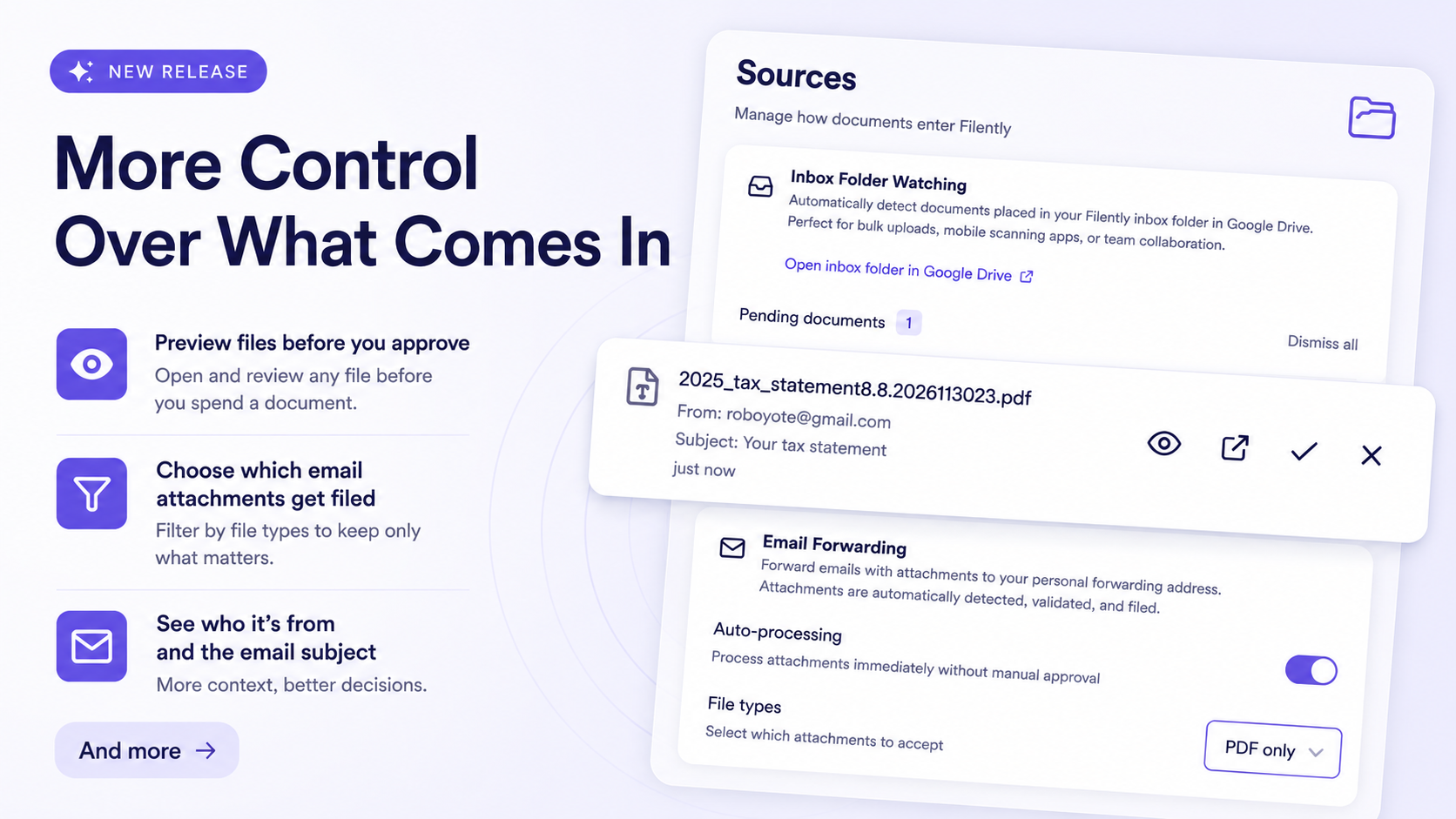
Every file waiting on your Sources page now carries an open button, so you can check what something is before you spend a document on it.
Email attachments open in a new browser tab for PDFs, photos, and scans, and download for the formats browsers cannot display. Files found in your inbox folder open in Google Drive under your own account, where every format has a viewer, including Office files and Google Docs. Rejected files carry the same button, so you can check a duplicate warning against the actual file before you dismiss it.
Each row also shows more context: who sent the file, the subject line of the email it came from, or the folder it was found in. Opening a file does not file it and does not use a document credit. @Email Forwarding Inbox Folder Watching
Decide which email attachments get filed
Forwarded emails often carry more than the document you meant to send. Two changes keep the noise out of your Drive.
Filently now always skips decorative graphics: any image under 25 KB, and SVG graphics at any size. Those are the signature logos and tracking pixels that arrive as ordinary attachments. They are never downloaded, never use a credit, and never reach your Sources page. Photographed receipts and scanned pages are far larger, so they still come through normally, and PDFs and Office documents are never skipped.
Auto-processing also has a new File types setting on the Sources page. Choose PDF only, PDF and Office, PDF, Office and images, or everything. Attachments outside your choice are skipped before they reach you. Email Forwarding
Better recognition of unlabeled files
Browsers and cloud drives often hand over a file without saying what it is, especially for less common extensions. Filently used to fall back to the filename in those cases, which made for weaker names and filing suggestions.
Filently now works out the real file type from the file itself, both when you upload and when a document is processed. Files that arrive unlabeled are read and classified properly, and forwarded attachments are judged on what they actually contain rather than on what the sender claimed. Supported File Types and Limits
New Features
Revert many changes at once
Undo is no longer one document at a time. Select as many changes as you like on the Activity page and roll them all back in a single run.
Choose Select to revert and the timeline switches to Revertible changes, so you only see what can actually be undone. Tick what you want, or use Select all N matching to take everything behind your current filters, including entries on pages you have not scrolled to yet. Before anything happens, a confirmation shows you how many changes and documents are involved and exactly where each document will land, with its restored name and folder.
The run happens in the background, so you can keep working or close the page. When it finishes you get one entry with a full report: how many documents came back, how many were restored from Google Drive trash, how many were skipped, and what failed and why. Bulk revert follows the same rules as a single revert and never deletes a file. Activity
The bulk revert confirmation, showing the affected documents and their restored locations
A completed bulk revert entry with its run report open
Extra documents without changing your plan
You no longer have to upgrade or wait for your billing date when you run out of documents. Buy a one-time package of extra documents straight from your billing page, from 50 up to 3,000. Larger packages cost less per document, and you can chat with us for anything above 3,000.
Extra documents sit on top of an active plan. Your plan allowance is always used first, extra documents carry over between billing periods instead of resetting, and they stay available for as long as your subscription is active.
Bug Fixes
Inbox folder watching: watching now repairs itself when the connection that reports new files breaks, so new files are picked up again without you doing anything.
Very long filenames: a file with an unusually long name no longer blocks the rest of your inbox from being processed.
Unreadable Office files: a damaged Office file is now filed on its name instead of failing outright.
Filing everything at once: filing a large batch no longer stops part-way when Google limits how fast files can be moved, and large batches now finish faster.
Missing file permissions: if Filently cannot access a file, filing now tells you what to do instead of showing a generic error.
Re-analyzing documents: you can now re-analyze up to 15 documents per hour, up from 3.
Unreadable Office files: a damaged Office file is now filed on its name instead of failing outright.
Reverts that lose file access: if a revert fails because Filently lost access to the file, the change stays revertible so you can retry after you restore access.