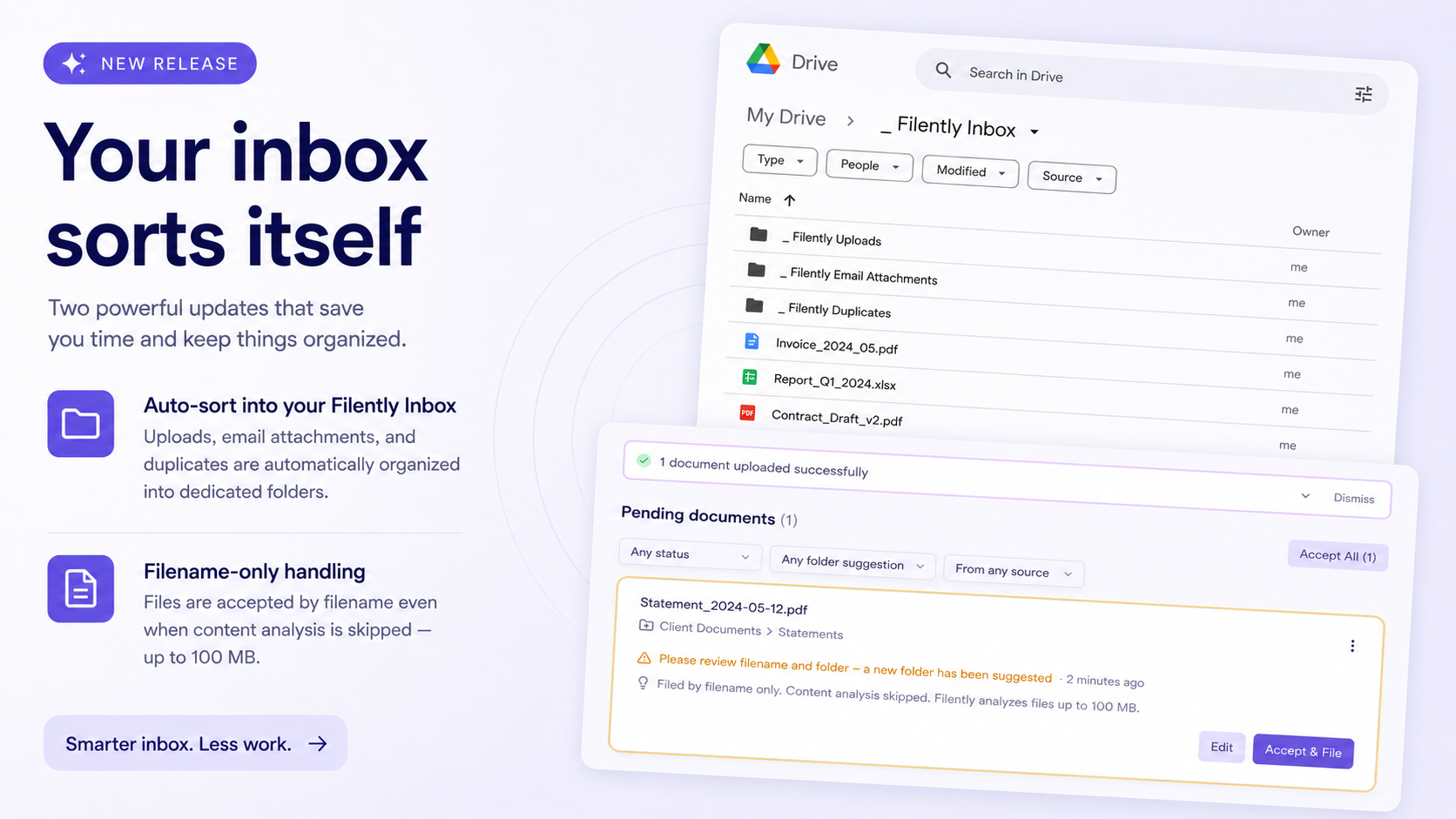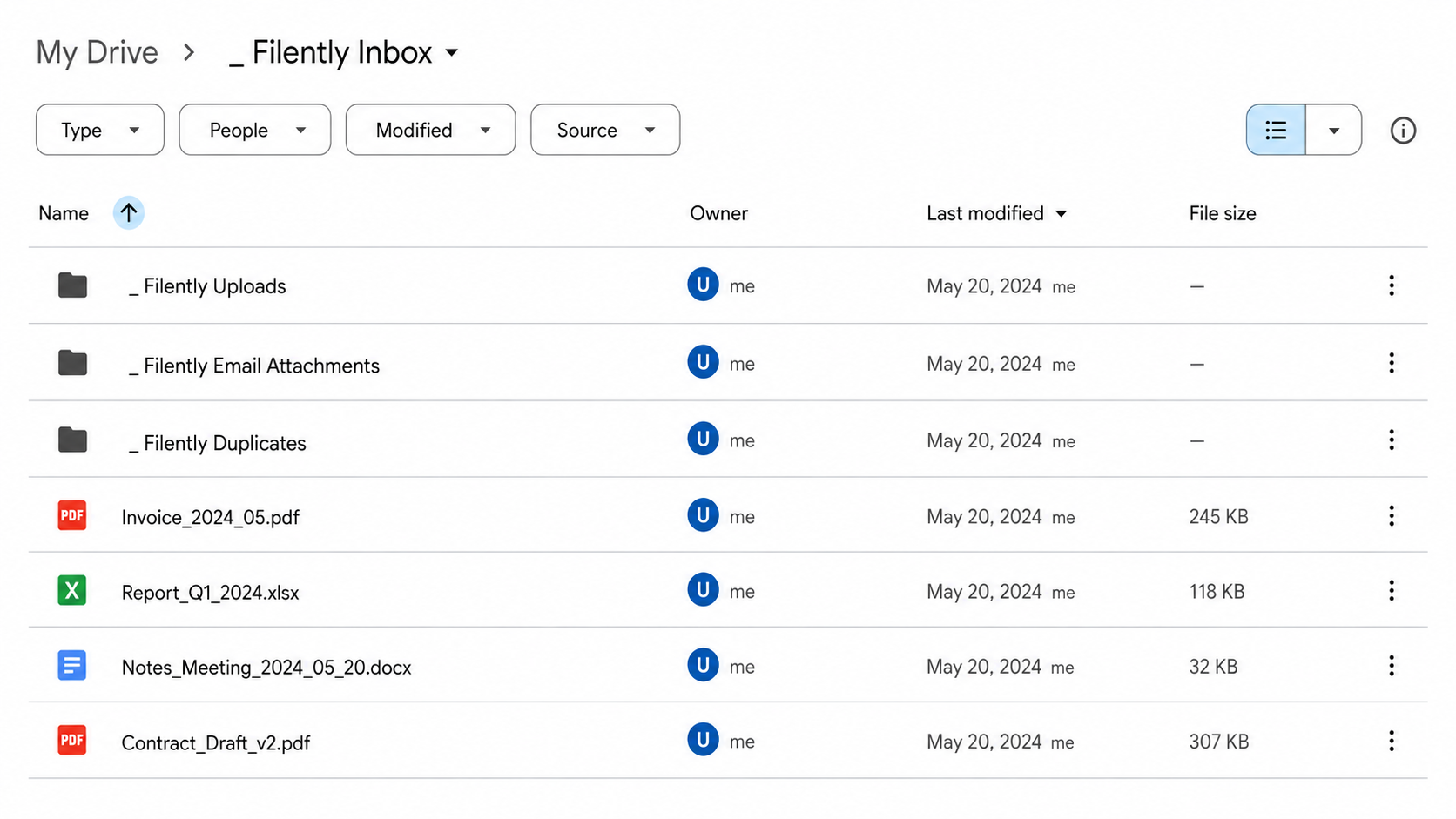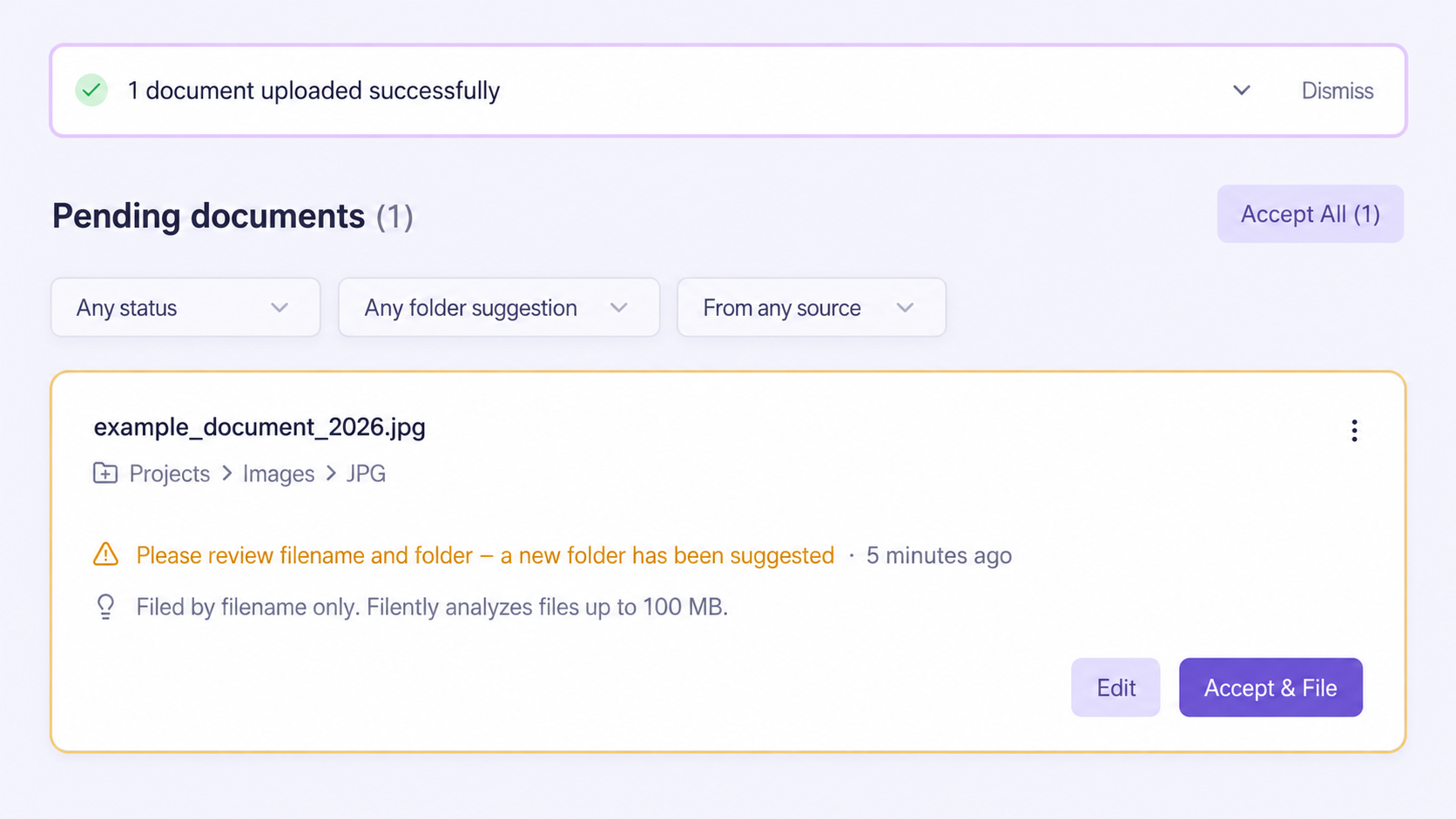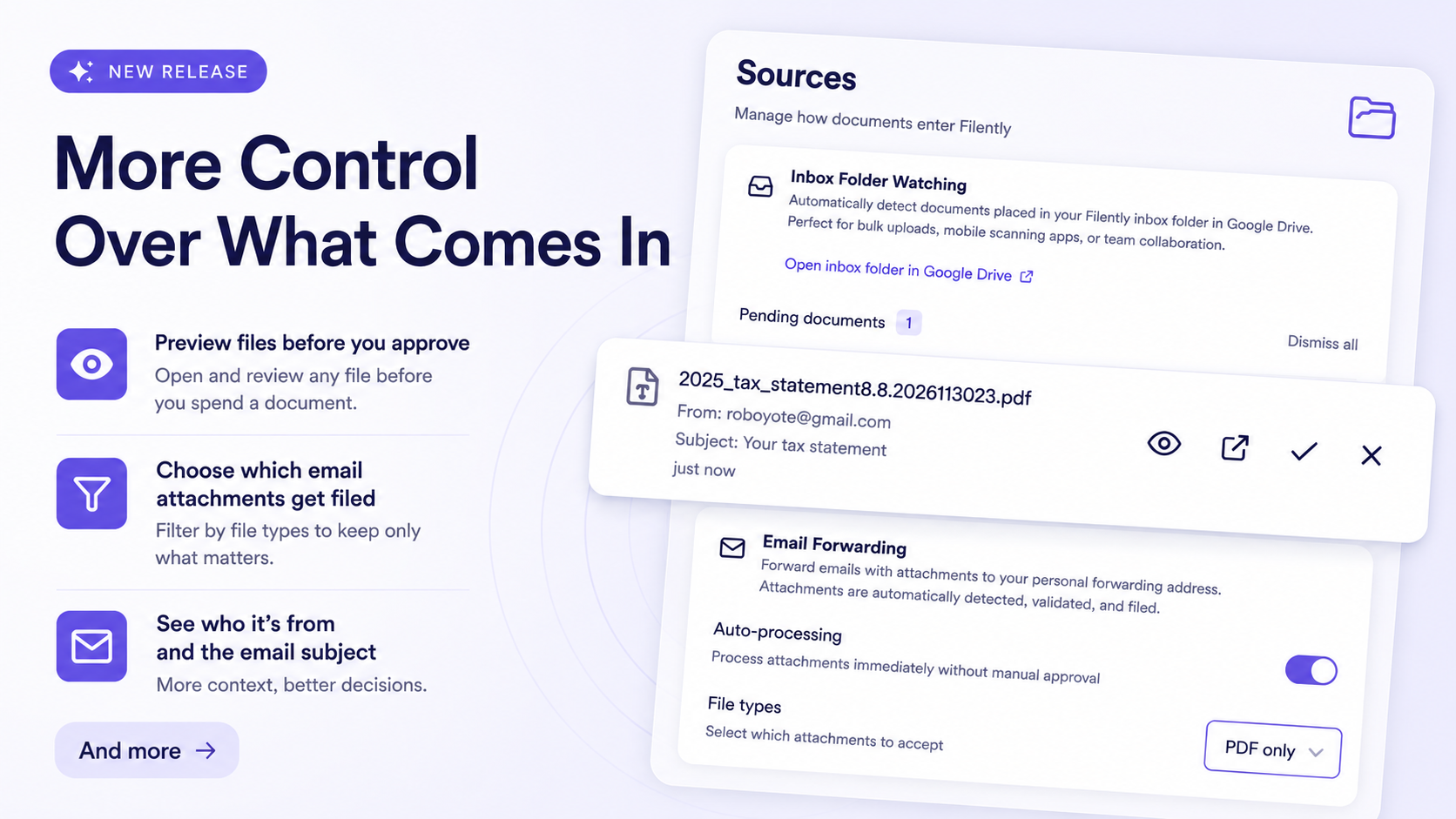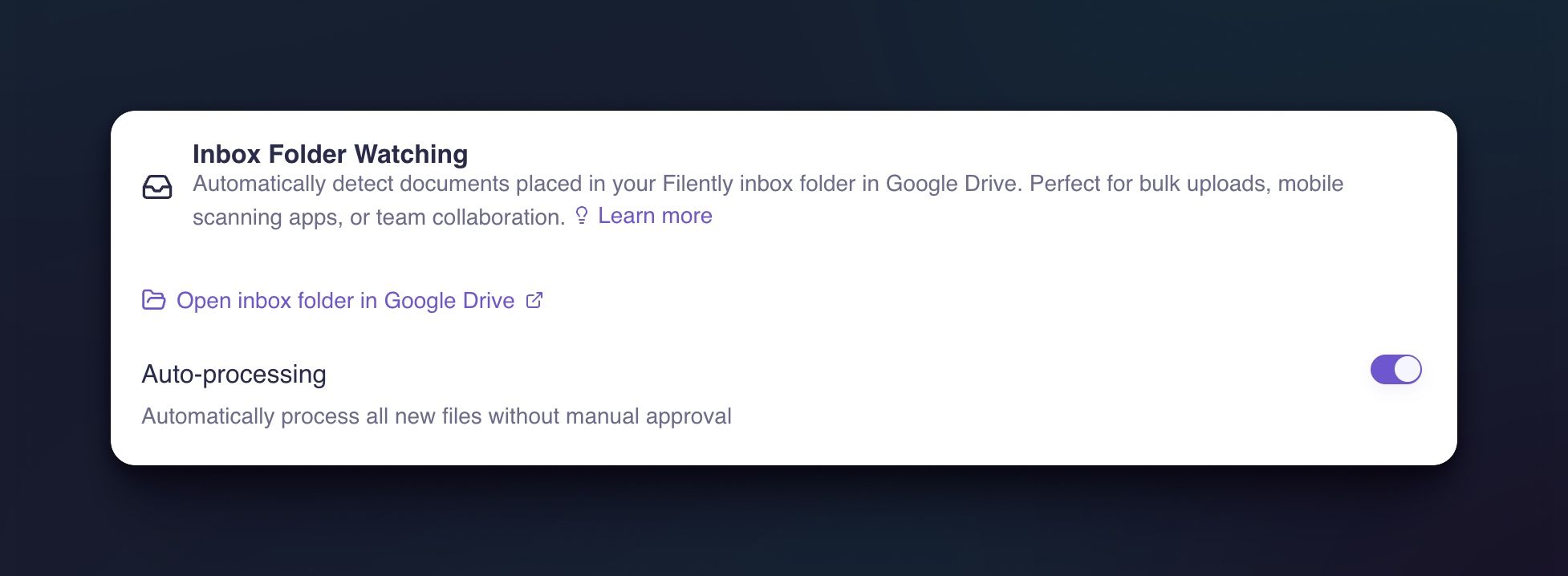
Last release your inbox folder started keeping itself organized. This one goes after the work you still do document by document: file or move a whole set in a single run, and let Gmail forward your mail to Filently automatically instead of you sending each email yourself.
Many documents, one run
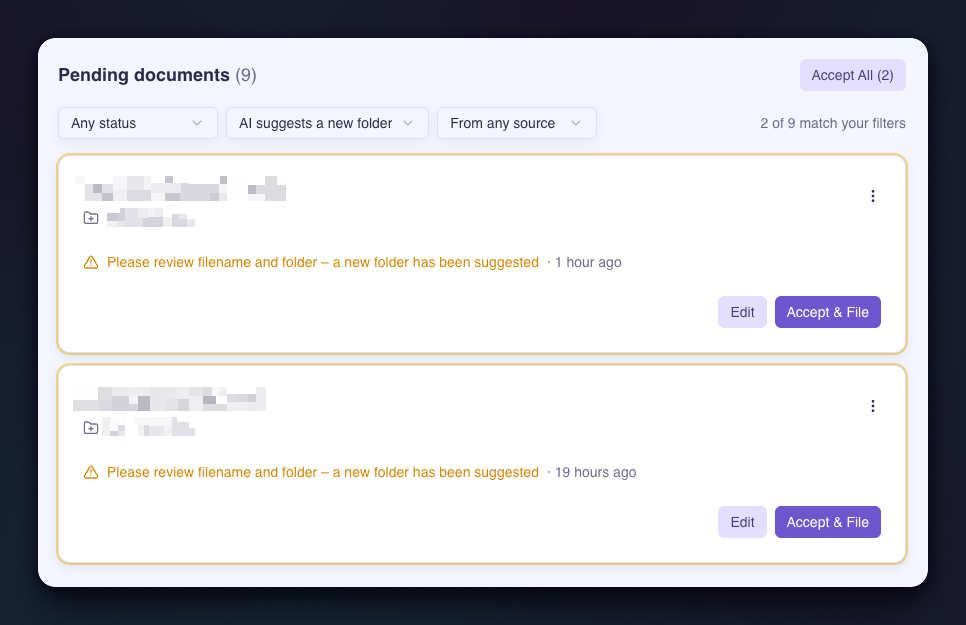
Until now, filing was all or nothing: accept every suggestion on the page, or work through the documents one at a time. Now you pick the set.
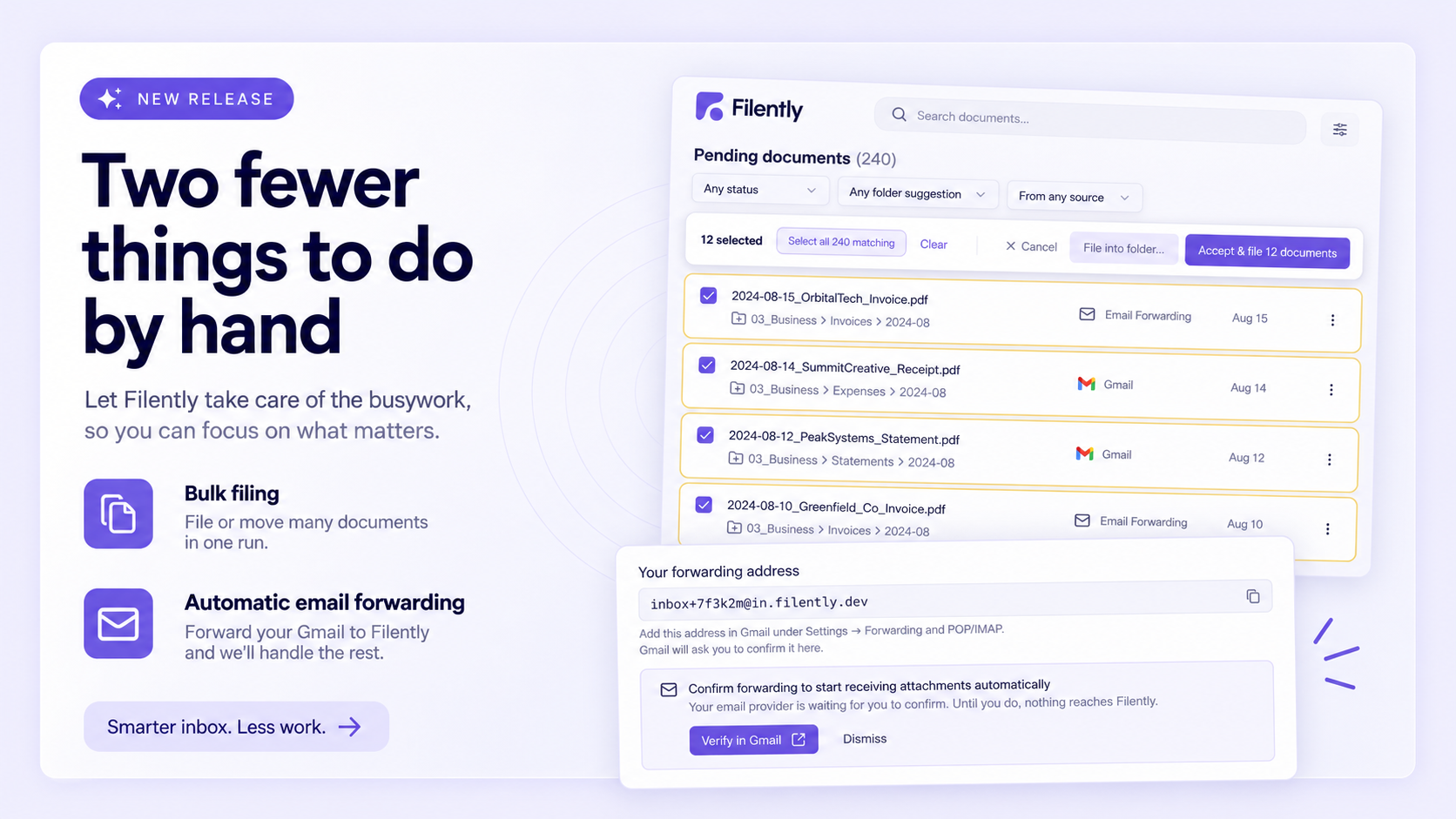
Choose Select to file on your dashboard, tick the documents you want, and file only those. The bar above the list keeps a running count. Select all 240 matching takes everything behind your filters, including the pages you have not scrolled to, and you can untick single rows to leave them out. Accept & file 12 documents then files each one where Filently suggested, under the name it suggested.
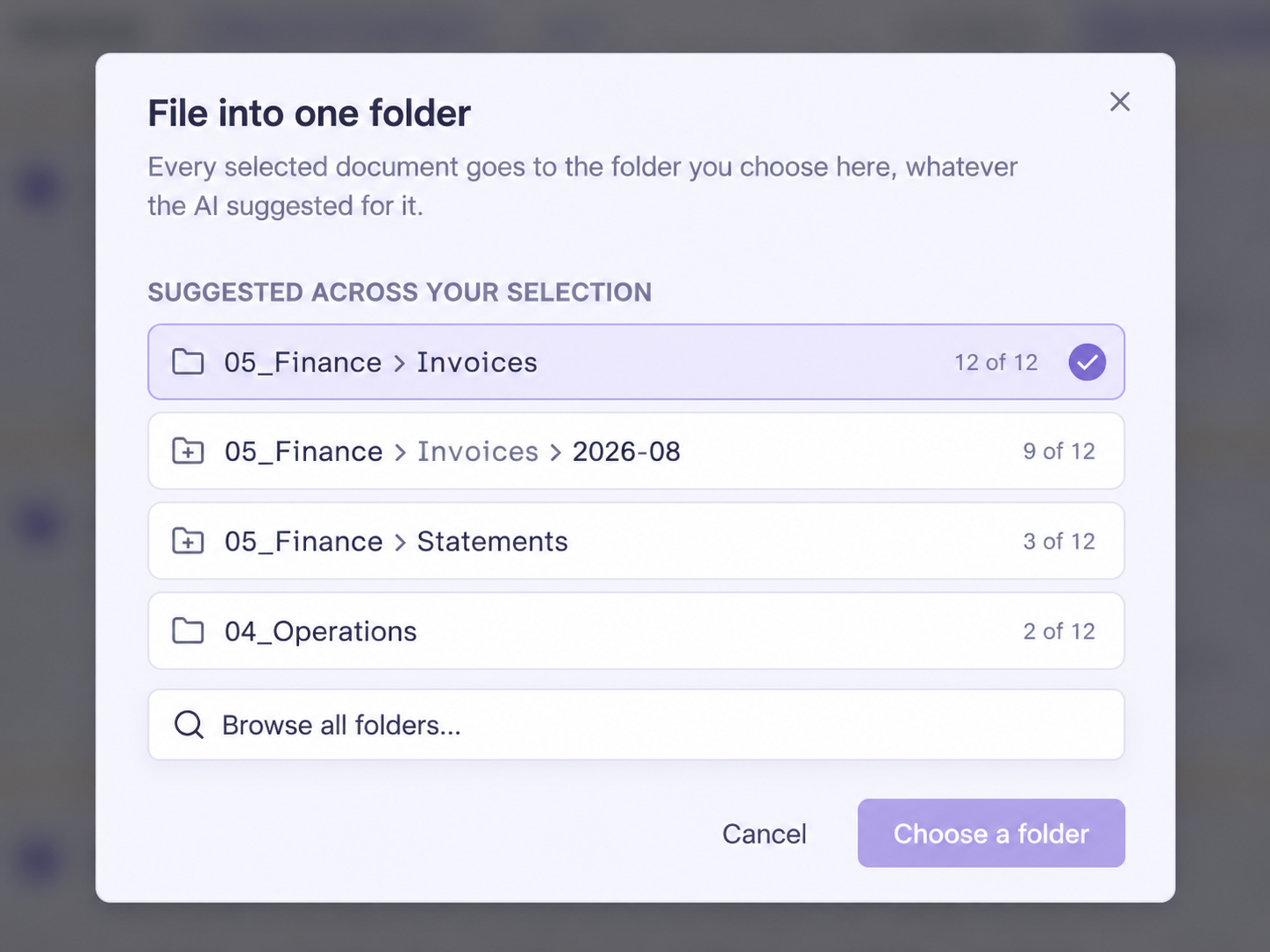
When you already know where a set belongs, File into folder... overrides the suggestions and sends the whole selection to one folder you choose. Filently opens with a shortlist of the folders your selection already points at, ordered by how many documents agree, each with its share next to it: 23 of 50. A strong pattern is one click. For a large selection Filently reads the first 50 documents to build that shortlist, and the folder you pick still applies to all of them. Browse all folders... opens your full Drive if you want something else.
The same works on the Documents page for files you filed already, where the buttons read Select to move. Documents that Filently could not analyze come along too: they move into the folder you chose and keep the filename they have.
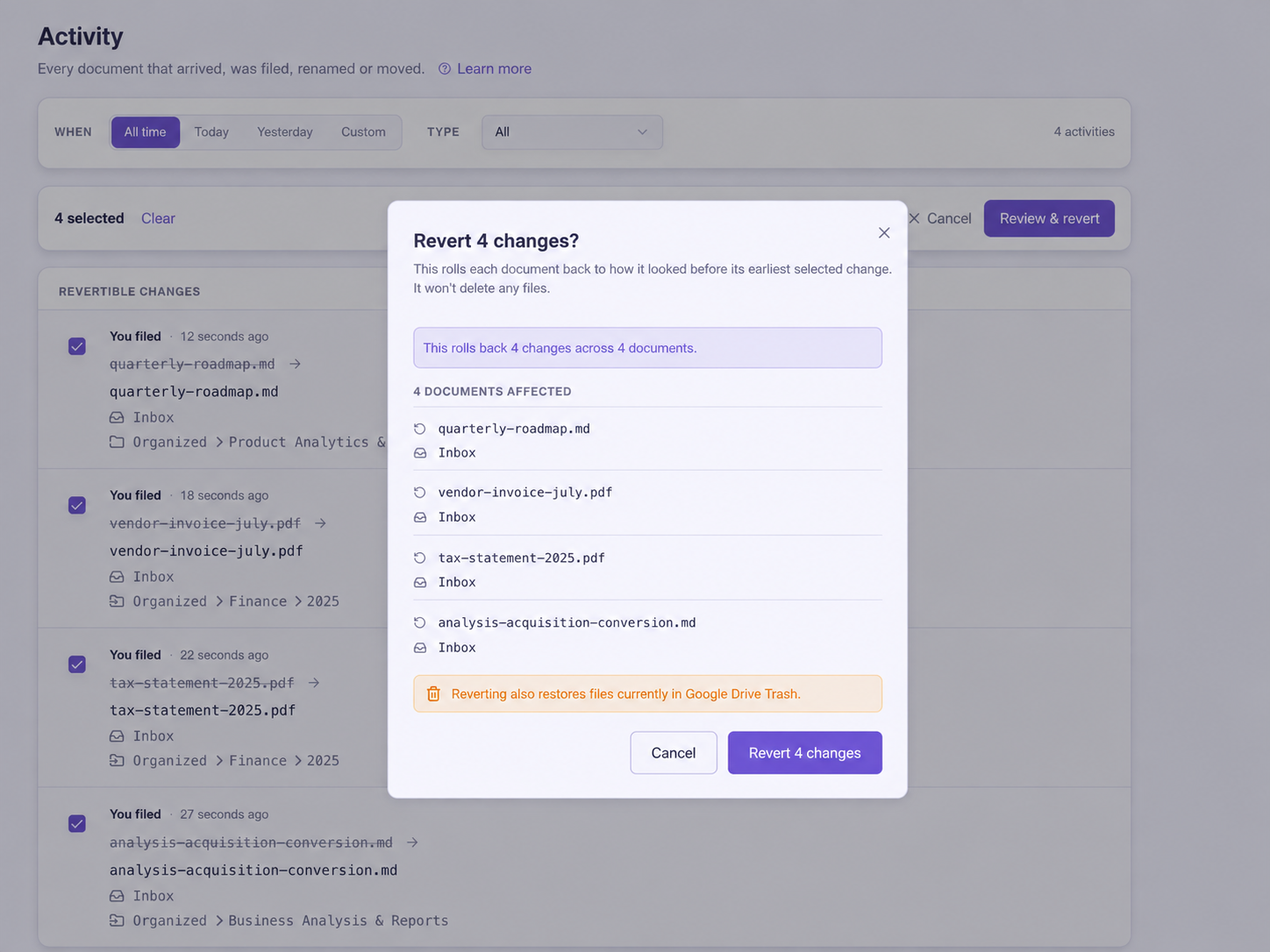
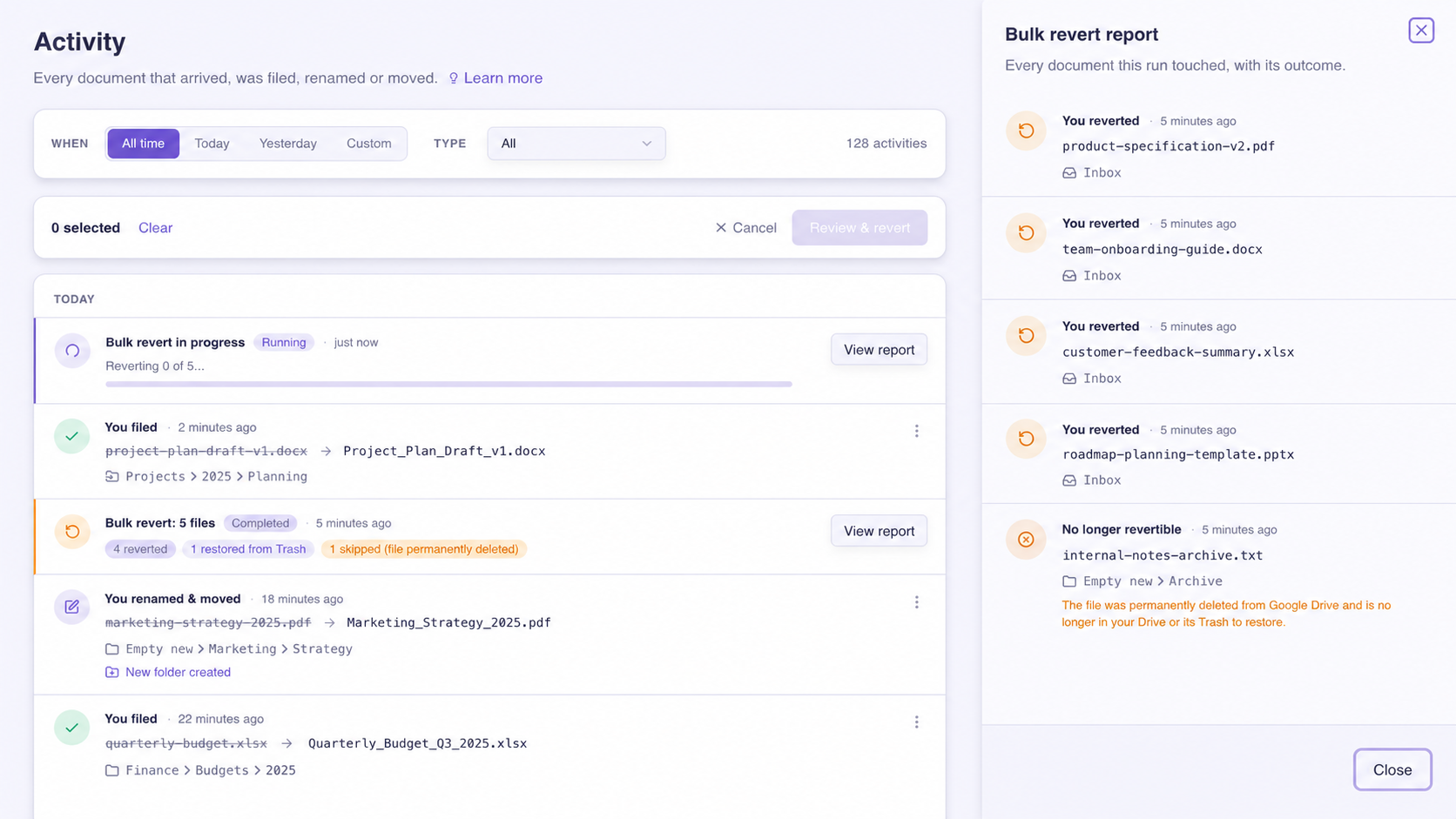
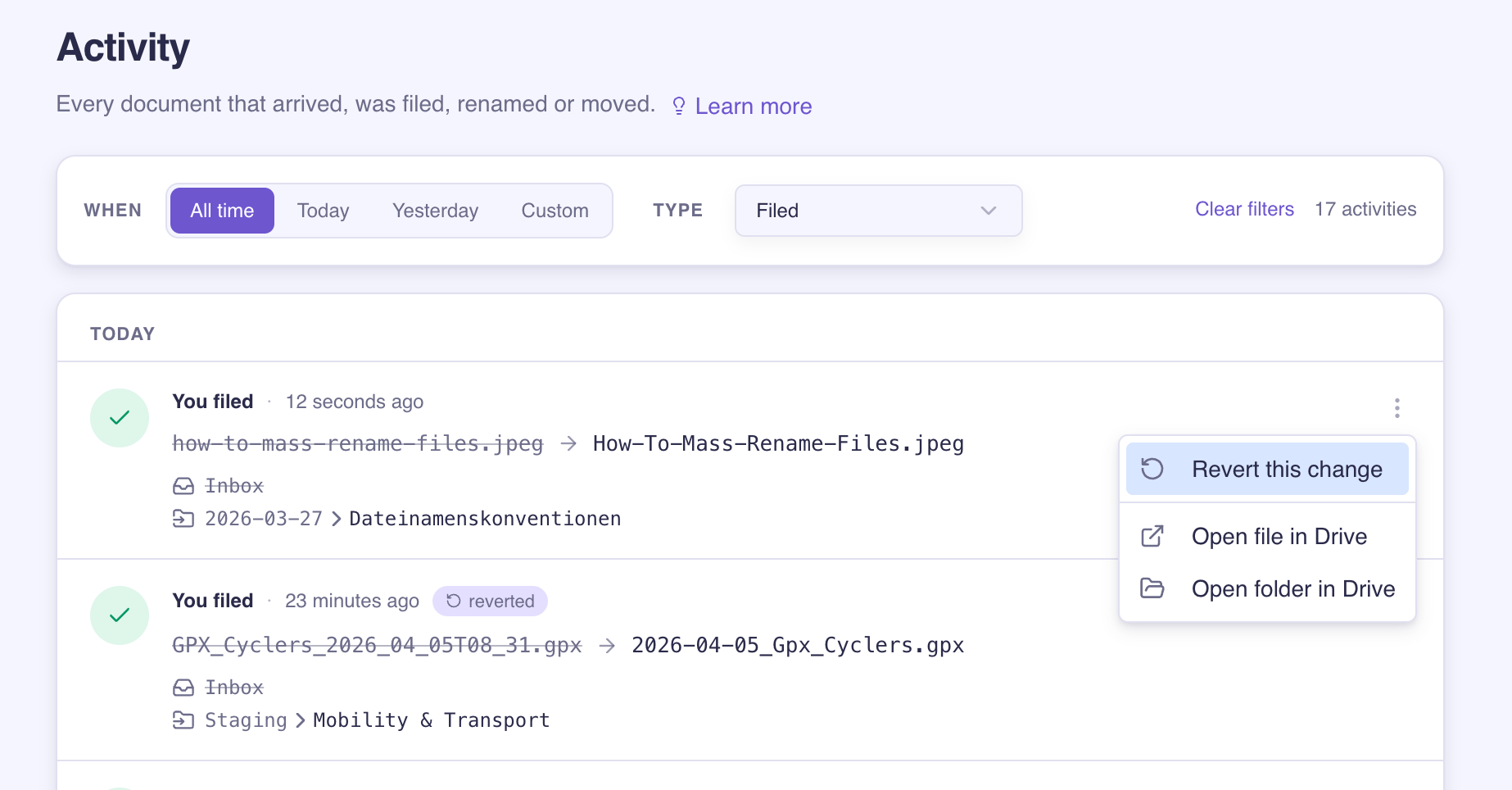
A run happens in the background, so you can keep working or close the page. It appears in your Activity feed as one entry with a progress count, a report of every document it touched, and the reason for anything it could not move. You can undo it, whole or document by document. Activity Managing Filed Documents
New Features
Turn on automatic email forwarding
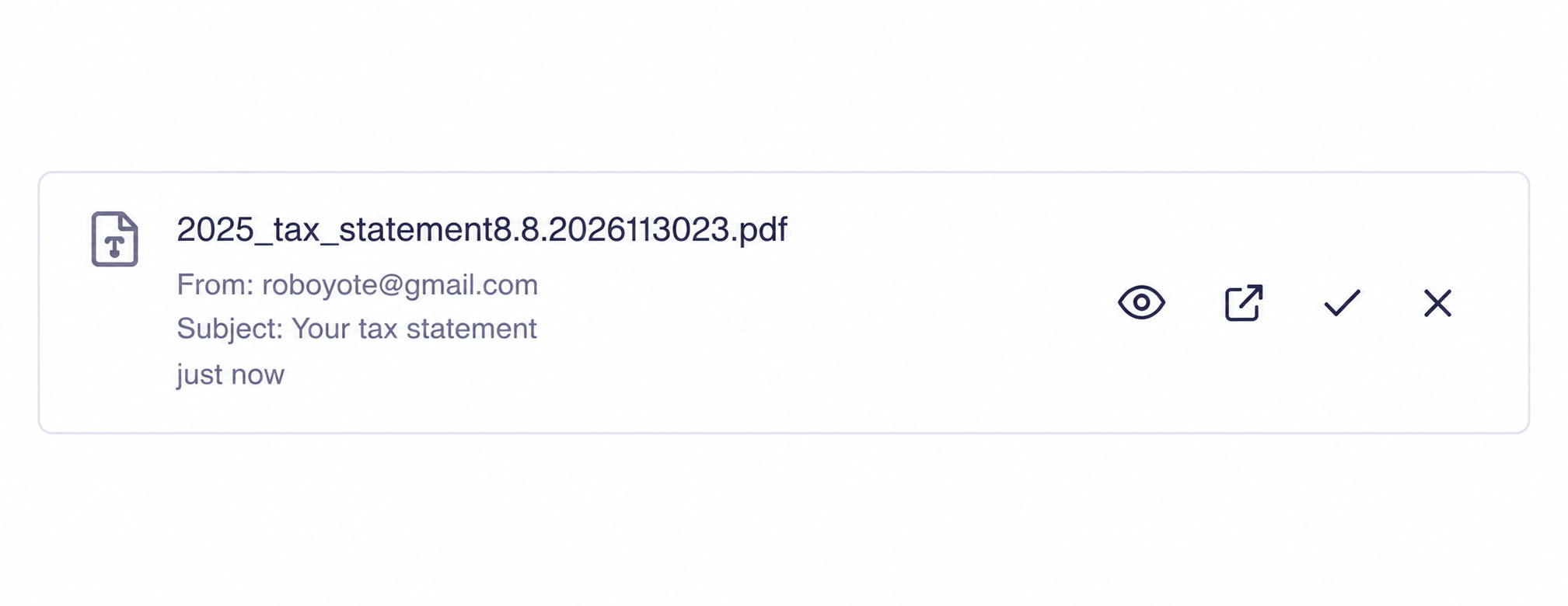
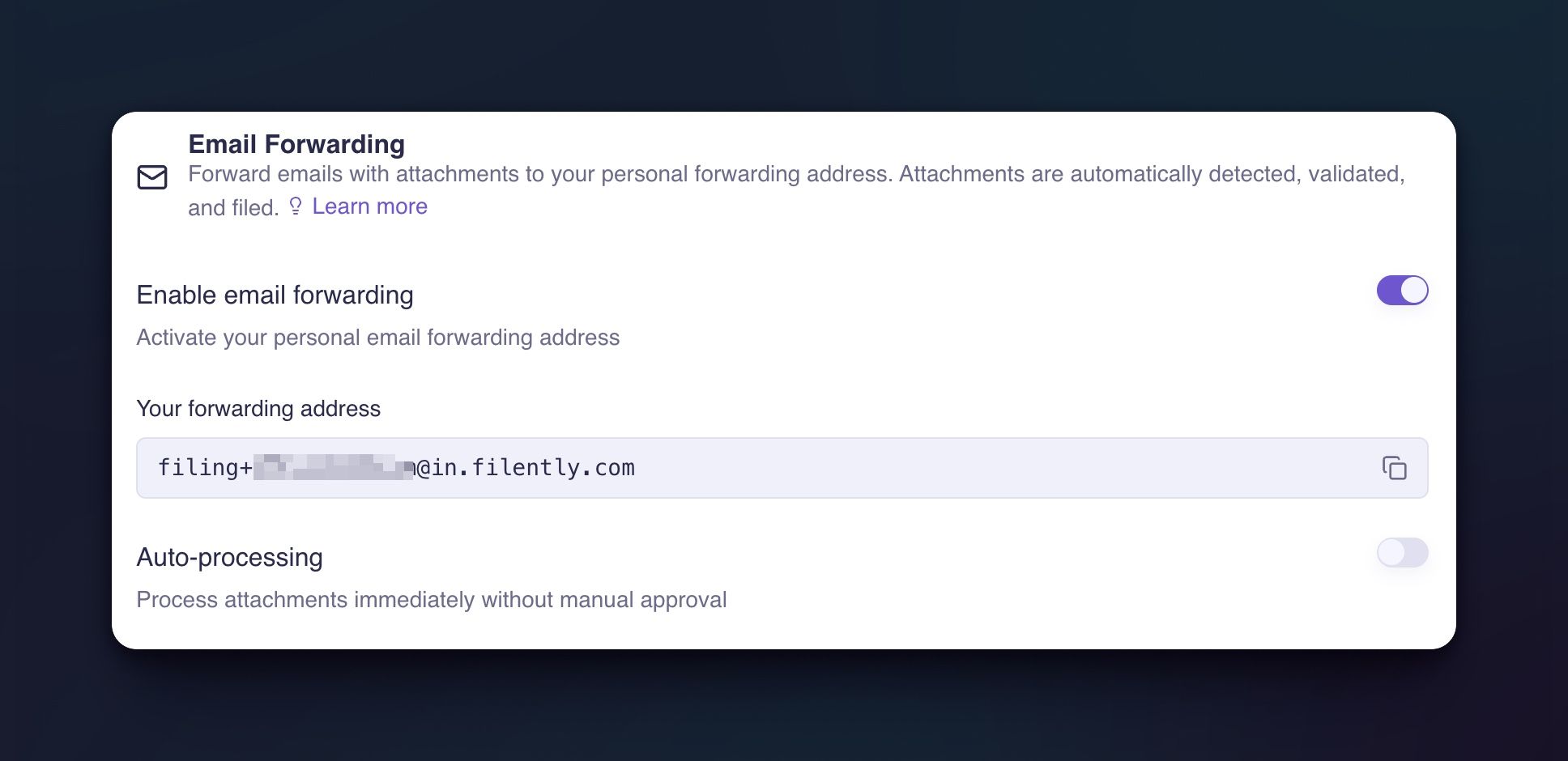
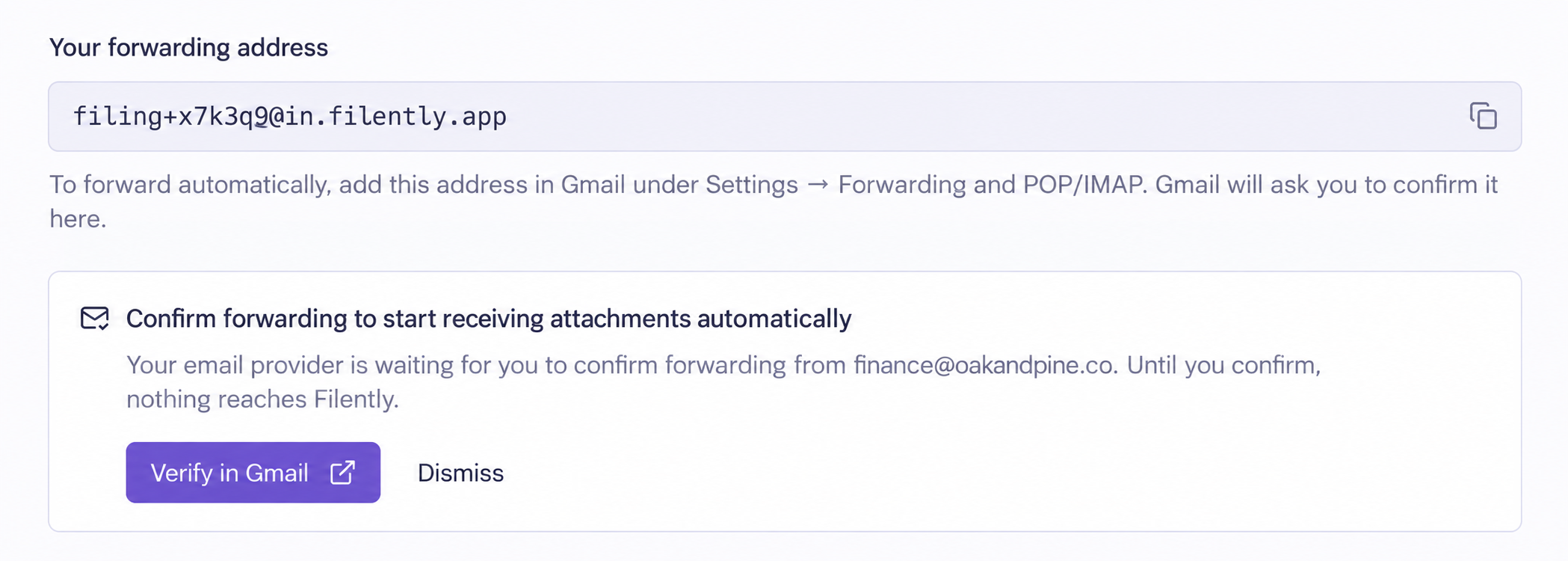
Gmail can forward every incoming email to your Filently address by itself. It first asks you to confirm, and it sends that confirmation to the address you entered. That is your Filently address, so the email never reached you and forwarding stayed switched off.
The confirmation now appears in the app. Open the Sources page and the Email Forwarding card shows the request, names the mailbox that asked to forward, and gives you a Verify in Gmail button straight to Google's confirmation page.
Read the mailbox name before you confirm. Anyone who knows your forwarding address can ask Gmail to send mail to it, and Filently never confirms on your behalf. If you do not recognize the address, dismiss the reminder and Gmail leaves forwarding off. Forwarding single emails by hand needs none of this. Email forwarding is on the Professional plan and above. Email Forwarding
Bug Fixes
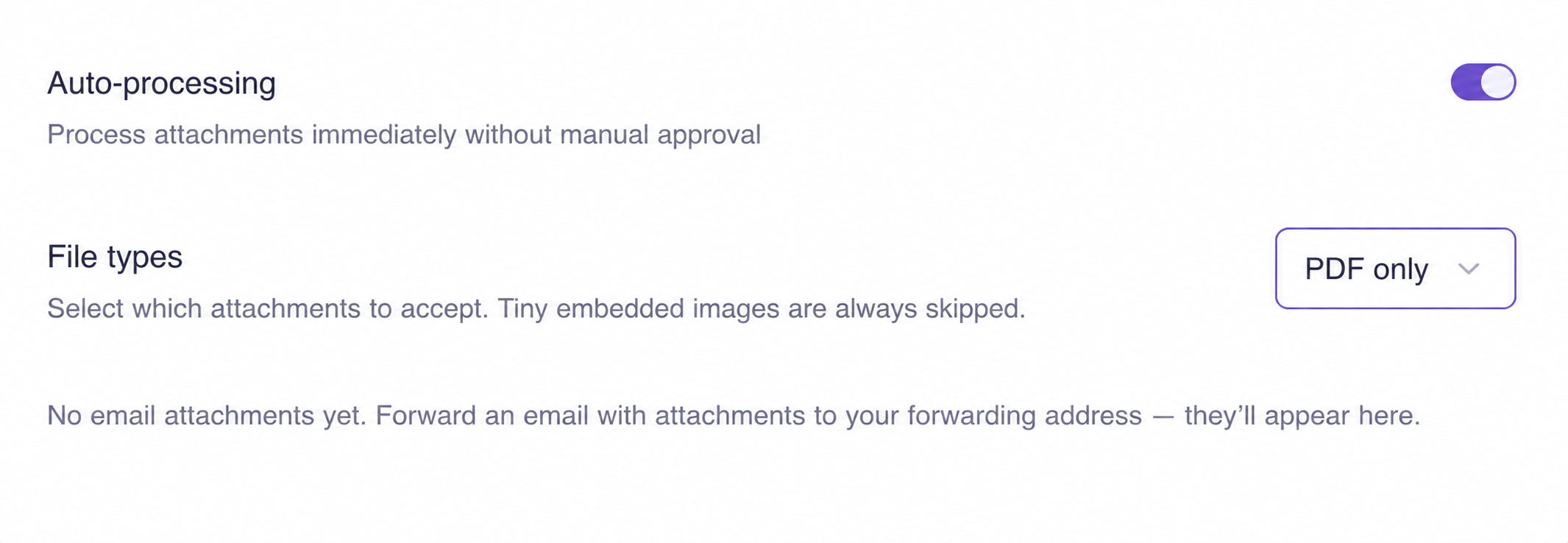
Bounce messages: once your mail forwards automatically, failed deliveries and read receipts arrive too. Filently now skips the status parts your provider attaches to them, so they no longer sit in your list waiting to be dismissed.
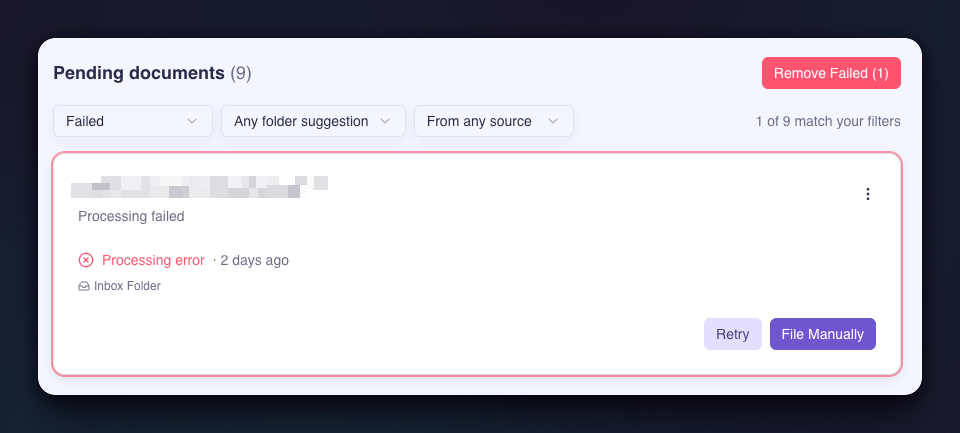
Documents stuck on "Uploading": an upload that stopped halfway, because you closed the tab or lost your connection, left the document in your list forever. Filently now clears it out.
Documents stuck on "Processing": an empty file, or a download that cut out mid-way, could hold a document in processing with nothing to show. Both now end properly and the document moves on.
Duplicate folders: when a step of the folder setup ran twice, it created a second copy of the same folder in your Drive. It now reuses the folder that is already there.
Renewals: if your payment provider had to retry a renewal, the documents for the new period were not added to your balance. They are now.
Dashboard counts: the counts above your document list only refreshed when you came back to the tab. They update live again.